
HitPaw Watermark Remover Review: AI Features & Installation Guide
HitPaw Watermark Remover Review: AI Features & Installation Guide
HitPaw Watermark Remover is an image and video editing application designed to remove unwanted watermarks, text, logos, and selected objects from digital media. It uses AI-powered processing and several filling techniques to reconstruct areas after removing unwanted elements.
The software is designed for content creators, photographers, and users who need to clean up their own images and videos. Its selection tools allow users to mark an unwanted area and choose a suitable removal method.
In this guide, we explore HitPaw Watermark Remover’s main features, available editing modes, supported platforms, system requirements, pricing, and installation process.
Version information: The original article mentions version 8.3.4, but this exact build could not be verified through the official HitPaw release information. Therefore, this review focuses on the product’s documented capabilities rather than presenting 8.3.4 as the latest release.
What Is HitPaw Watermark Remover?
HitPaw Watermark Remover is a desktop utility for removing unwanted elements from photos and videos. It can process selected areas containing watermarks, logos, text, stickers, and other visual objects.
The application provides different removal methods depending on the type of media and the background surrounding the selected area. For example, AI-based processing can help reconstruct complex backgrounds, while filling methods can work well with simpler visual patterns.
HitPaw also provides online tools for certain image-editing tasks. However, the online service and desktop application are separate products with different features.
Important: Only remove watermarks from media you own or have permission to edit. Do not remove copyright notices, ownership marks, or creator attribution from someone else’s work without authorization.
Main Features of HitPaw Watermark Remover
1. AI-Powered Watermark Removal
The AI removal mode analyzes the selected area and attempts to reconstruct the background. It can help remove unwanted text, logos, stamps, and other visual elements from supported images and videos.
The final result depends on the complexity of the background, the size of the selected area, and the quality of the original media.
2. Remove Watermarks from Videos
The application provides tools for selecting unwanted elements in video footage. Users can mark the area containing a watermark and choose a suitable removal mode.
It also supports working with moving watermarks by selecting the relevant area and adjusting the timeline.
3. Remove Watermarks from Images
HitPaw Watermark Remover includes image-editing tools for removing unwanted marks from photographs. Users can select the required area and apply an appropriate repair method.
This can be useful for cleaning up personal photographs and other images that users are authorized to modify.
4. Matte Filling
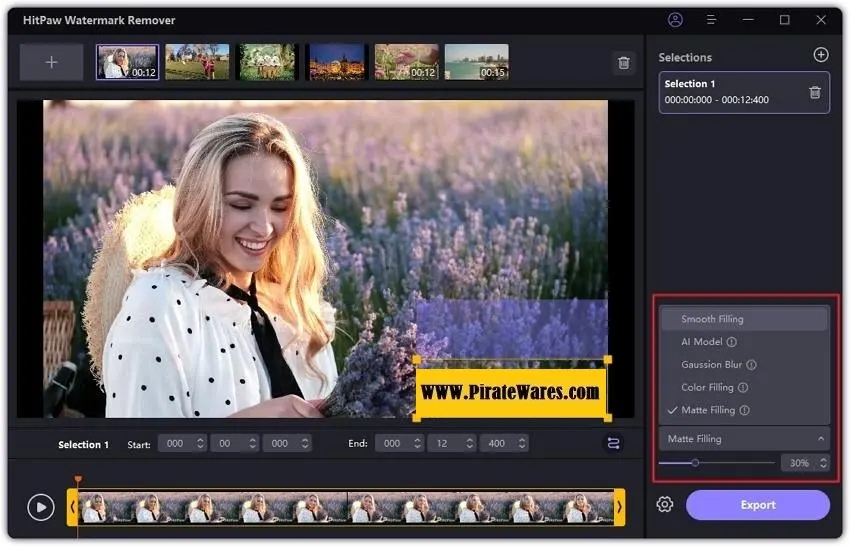
Matte Filling allows users to select an area from the video and use surrounding visual content to cover the unwanted section.
This method can be helpful when the background contains more complicated details and a simple color fill would not produce a suitable result.
5. Color Filling
Color Filling uses surrounding colors to cover the selected area. It is particularly useful when a watermark appears over a relatively simple or single-color background.
The effectiveness depends on how closely the surrounding colors match the original background.
6. Smooth Filling
Smooth Filling uses nearby edge pixels to create a smoother transition across the selected area.
It can be useful for removing small unwanted marks where the surrounding background does not contain too many complex details.
7. Gaussian Blur
Gaussian Blur applies a blur effect to the selected area. It provides another option when completely reconstructing the original background is difficult.
Users can adjust the effect according to the appearance of the footage.
8. Texture Repair and Edge Filling
For images, HitPaw provides repair methods such as Texture Repair and Edge Filling.
Texture Repair analyzes surrounding image details to help reconstruct the selected region. Edge Filling uses nearby edge information to fill the marked area.
9. Undo and Redo
The application provides editing controls that help users reverse supported changes and try another removal method.
This is useful when the first result does not look natural or the selected area needs adjustment.
10. Preview Before Exporting
Users can preview the processed media before saving the final result. This makes it easier to check whether the selected removal mode produces an acceptable outcome.
Video and Image Watermark Removal Modes
HitPaw provides different processing options for images and videos.
Video removal modes include:
- AI Model
- Matte Filling
- Color Filling
- Smooth Filling
- Gaussian Blur
Image removal modes include:
- AI Model
- Texture Repair
- Edge Filling
- Smooth Filling
The available options can vary between operating systems and software releases. Check the official feature page for the current platform-specific details.
How Does HitPaw Watermark Remover Work?
The basic workflow is straightforward.
Step 1: Import Your Media
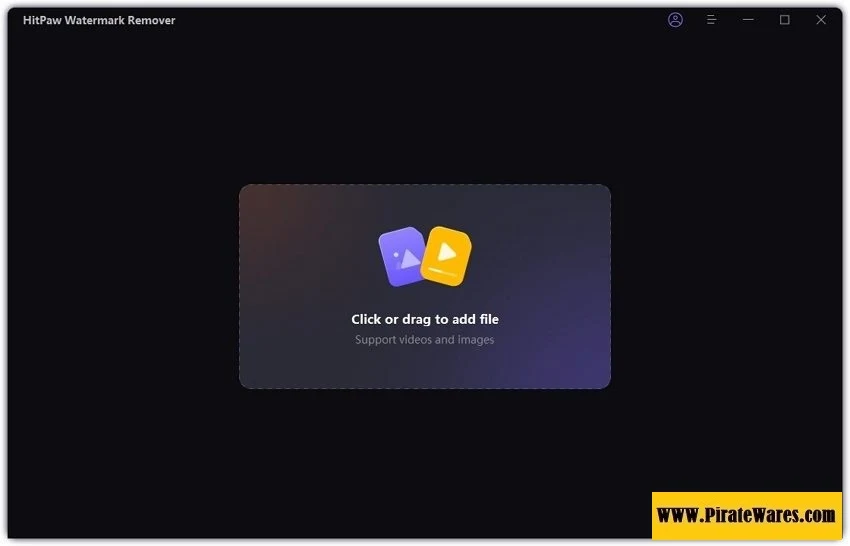
Open HitPaw Watermark Remover and import the image or video you want to edit. You can also use the supported drag-and-drop workflow.
Step 2: Select the Unwanted Area
Use the available selection tool to mark the watermark, text, logo, or object you want to remove.
Adjust the selection carefully so that it covers the unwanted element without including too much of the surrounding content.
Step 3: Choose a Removal Mode
Select an appropriate processing method based on the background and type of media.
For example, Color Filling may work well with simple backgrounds, while AI processing or Matte Filling may be more suitable for complex scenes.
Step 4: Preview the Result
Review the processed image or video. If the result is not satisfactory, adjust the selection or try another removal mode.
Step 5: Export the Edited File
When you are satisfied with the preview, use the export option to save the edited media.
Always retain a copy of the original file so you can return to it if needed.
HitPaw Watermark Remover: Supported Platforms
According to HitPaw’s official getting-started guide, the desktop application supports:
- Windows 11
- Windows 10
- Windows 8
- Windows 7 (64-bit support)
- macOS 10.13 or later
The Windows and Mac editions may offer different processing options. In particular, HitPaw’s technical FAQ notes that certain video-removal modes are currently available only in the Windows version.
The online watermark-removal service is a separate browser-based option. Do not assume that every desktop feature is available on Android or other mobile devices.
System Requirements
HitPaw’s official guide confirms the following operating-system compatibility:
- Windows: Windows 7 (64-bit), Windows 8, Windows 10, and Windows 11.
- macOS: macOS 10.13 or later.
The official getting-started page does not provide a complete minimum CPU, RAM, and storage specification. For this reason, exact hardware requirements should be checked on the official download page before installation.
For better processing performance, use a computer with sufficient memory, updated graphics drivers, and enough free storage for imported and exported media.
Free Trial and Pricing
HitPaw provides a free download option so users can explore the application before purchasing.
Its official purchase page lists monthly, yearly, and perpetual licensing plans. The displayed prices and included AI credits can vary depending on the selected plan and current promotions.
The listed plans include different allowances for AI processing and access to the software’s core features.
Before purchasing, review the current pricing, renewal conditions, supported devices, export options, and license restrictions.
A legitimate license is required for paid functionality. Avoid unofficial serial keys, key generators, and modified installers.
How to Install HitPaw Watermark Remover
Follow these steps to install a legitimate copy:
- Visit the official HitPaw Watermark Remover website.
- Select the Windows or macOS version that matches your computer.
- Choose the official free download option.
- Wait for the installer to finish downloading.
- Open the downloaded setup file.
- Review the license agreement and installation settings.
- Choose the installation location if required.
- Click Install and allow the setup process to finish.
- Launch HitPaw Watermark Remover.
- Sign in with your HitPaw account if required.
- Review the trial or licensing options before using paid features.
Do not replace program files with unofficial executables or use modified installation folders. Downloading software from the publisher is the safer approach.
Advantages and Limitations
Advantages
- AI-powered image and video editing tools.
- Multiple watermark removal modes.
- Supports selected object, text, and logo removal.
- Separate processing options for photos and videos.
- Preview functionality before exporting.
- Windows and macOS desktop availability.
- Online tools for certain image-editing tasks.
Limitations
- Results depend on background complexity and selection accuracy.
- Some video-processing modes are Windows-only.
- Full functionality requires a suitable license.
- AI processing may use credits depending on the selected plan.
- Minimum CPU and RAM requirements are not clearly listed in the official getting-started guide.
- Removing complex objects may leave visible editing artifacts.
Frequently Asked Questions
What is HitPaw Watermark Remover used for?
It is used to remove unwanted watermarks, logos, text, stickers, and selected objects from supported images and videos.
Is HitPaw Watermark Remover available for Android?
The desktop application is designed for Windows and macOS. HitPaw also offers online tools, but these are separate from the desktop software and should not be described as an Android desktop-app version.
Does HitPaw Watermark Remover support Windows 11?
Yes. HitPaw’s official getting-started guide lists Windows 11 among the supported operating systems.
Can HitPaw remove moving watermarks from videos?
The software provides tools for handling moving watermarks. Users can select the watermark and specify its duration using the timeline.
Which removal mode should I choose?
The best mode depends on the background. Color Filling can suit simple backgrounds, while AI Model or Matte Filling may be more useful for complicated scenes. Preview different methods before exporting.
Does HitPaw Watermark Remover work on Mac?
Yes. The official guide lists macOS 10.13 or later as supported. However, some video-removal features may differ from the Windows edition.
Is HitPaw Watermark Remover free?
HitPaw offers a free download option. However, exporting and advanced functionality may require a paid plan, depending on the feature and current trial conditions.
Is it legal to remove a watermark?
It depends on the ownership and permissions associated with the media. Removing a watermark from your own content or content you are authorized to edit is different from removing a copyright or ownership notice from someone else’s work without permission.
Final Verdict
HitPaw Watermark Remover offers a collection of AI-based and traditional editing methods for cleaning up images and videos. Its selection tools, filling modes, and preview functionality provide flexibility when working with unwanted visual elements.
However, the results are not guaranteed to be perfect, particularly when the selected area contains detailed backgrounds or moving objects. Users should also check platform compatibility and licensing conditions before purchasing.
Overall, HitPaw Watermark Remover can be useful for authorized image and video editing tasks when users select the appropriate removal method and review the output before exporting.


Recent Comments