
Eassos Photo Recovery Review: Features, Supported Formats & Guide
Eassos Photo Recovery Review: Features & Supported Formats
Eassos Photo Recovery is a Windows utility designed to help users recover deleted or lost photographs from hard drives, USB flash drives, memory cards, and other storage devices. It provides a guided recovery process that lets users scan a selected drive, preview discovered pictures, and choose which files to restore.
The software is useful when photographs disappear after accidental deletion, formatting, partition problems, or other data-loss situations. However, recovery is not guaranteed. The chances of success depend on the condition of the storage device and whether new data has overwritten the deleted files.
This guide explains Eassos Photo Recovery, its main features, supported image formats, system compatibility, and important precautions before starting a recovery.
Version information: Eassos Photo Recovery’s official version history lists version 2.6.4.444, released on October 28, 2020. The version number 4.5.0.460 belongs to Eassos Recovery, a different product that was later renamed CuteRecovery. Therefore, 4.5.0.460 should not be presented as an Eassos Photo Recovery release.
What Is Eassos Photo Recovery?
Eassos Photo Recovery is a photo recovery application for Windows. It scans selected storage devices to locate photographs that have been deleted or become inaccessible.
The software provides a wizard-based interface, making the process easier to follow. Users select a drive or partition, start a scan, review the results, and choose the pictures they want to recover.
It can be useful for recovering photos from computer drives, external hard disks, USB flash drives, SD cards, MicroSD cards, and digital camera storage media.
Main Features of Eassos Photo Recovery
1. Recover Deleted Photos
The application can scan storage devices for photographs that have been deleted accidentally. It searches for recoverable files and displays the results so users can select the pictures they need.
2. Recover Photos from Formatted Drives
Formatting a storage device can make its previous files inaccessible. Eassos Photo Recovery provides scanning options for locating photographs from supported formatted storage devices.
However, recovery results depend on the type of formatting and whether the original data has been overwritten.
3. Support for RAW and Damaged Partitions
A storage partition may become inaccessible or appear as RAW because of file-system errors or other problems. The software can scan supported drives and partitions to look for recoverable pictures.
For physically damaged drives, professional data recovery services may be more appropriate.
4. Preview Before Recovery
The preview feature helps users inspect discovered photographs before restoring them. Users can view thumbnails and open supported pictures at a larger size.
This makes it easier to identify the files they actually want instead of recovering every scan result.
5. Recover Different Image Formats
Eassos Photo Recovery supports a variety of image formats, including common picture formats and camera RAW files.
Its documented format support includes JPG, JPEG, PNG, BMP, PSD, HEIC, CR3, and other image types. Support can vary depending on the file format and software version.
6. Scan and Filter Results
The application displays discovered files during or after scanning. Users can browse folders and filter results to find particular photographs more easily.
Filtering can help narrow down the results when a storage device contains a large number of files.
7. Support for Different Storage Devices
The software is designed to work with several types of storage media, including:
- Internal hard drives
- External hard drives
- USB flash drives
- SD memory cards
- MicroSD cards
- Digital camera memory cards
The computer must be able to detect the storage device before the software can scan it.
8. Save and Resume Scan Progress
Eassos Photo Recovery includes functionality for saving scanning progress. This can help users continue working without repeating an entire scan when they need to pause the process.
Supported Image Formats
The software supports multiple image formats used by digital cameras, graphics applications, and everyday photography.
Examples include:
- JPG and JPEG
- PNG
- BMP
- PSD
- HEIC and HEIF
- CR3
- RAW image formats
- Other supported camera image formats
The official version history for version 2.6.4.444 specifically mentions improved support for HEIC and CR3 photo recovery and preview.
Not every image extension is necessarily supported by every release. Check the software’s official documentation for the format you need.
How Eassos Photo Recovery Works
The recovery process generally follows three stages.
Step 1: Select a Storage Device
Start the application and select the drive, partition, or supported storage device that contained the missing photographs.
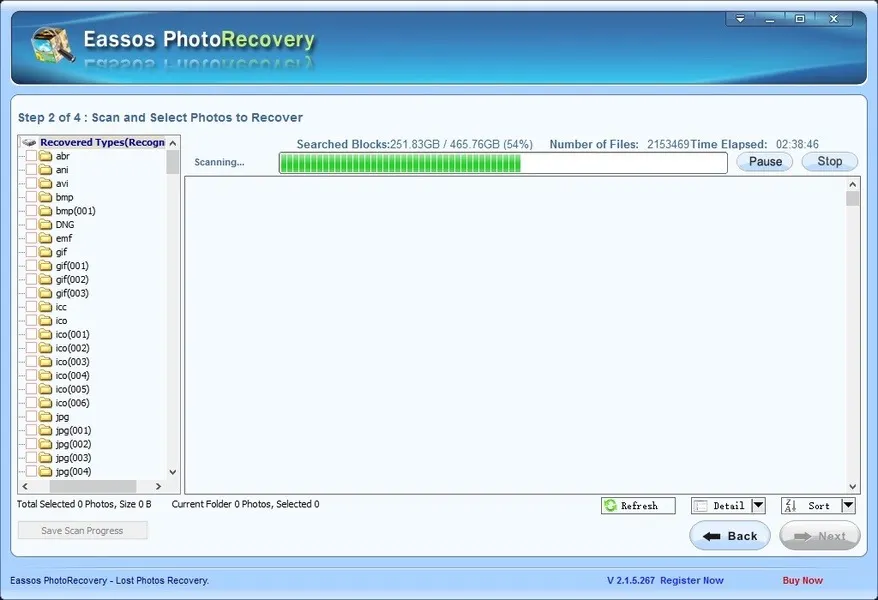
Step 2: Scan and Preview Photos
Start the scanning process. The software searches for recoverable photographs and displays discovered files. Use the preview feature to inspect pictures before selecting them.
Step 3: Recover Selected Files
Choose the photographs you want to restore and select a separate destination drive or storage device.
Important: Never save recovered photographs to the same drive or partition being scanned. Doing so may overwrite other deleted files and reduce the chances of recovering them.
Important Data Recovery Precautions
Data recovery requires care because ordinary computer activity can overwrite deleted information.
Follow these precautions before attempting recovery:
- Stop saving new files to the affected storage device.
- Do not install recovery software on the drive containing the lost photographs.
- Avoid formatting or modifying the affected partition.
- Save recovered files to another physical drive or storage device.
- If a drive makes unusual clicking noises or repeatedly disconnects, stop using it and consider professional recovery assistance.
- Do not assume every discovered file can be restored successfully.
For SSDs, TRIM and other storage-management features can make deleted-file recovery difficult or impossible in some situations.
Eassos Photo Recovery Version 2.6.4.444
According to the developer’s official version history, Eassos Photo Recovery 2.6.4.444 was released on October 28, 2020.
The update included several improvements:
- Improved accuracy when recovering files by type.
- Added recovery and preview support for HEIC and CR3 images.
- Optimized scanning results for FAT32 partitions.
- Optimized scanning results for NTFS partitions.
- Improved the speed of organizing recovered directory structures.
- Improved the process of loading previous scanning progress.
This is the latest version listed on the official Eassos Photo Recovery download and version-history pages. It should be described as the latest listed release, not as a newly released 2026 version.


System Requirements and Compatibility
Eassos’ official download page lists the following supported Windows platforms for Photo Recovery 2.6.4.444:
- Windows XP
- Windows Vista
- Windows 7
- Windows 8
- Windows 10
- Windows 11
- Windows Server 2003, 2008, and 2012
The developer does not provide a complete minimum CPU, RAM, and disk-space specification for this particular Photo Recovery release on its download listing. Therefore, exact hardware requirements should be confirmed with the developer rather than relying on unverified figures.
Compatibility with newer Windows versions and modern storage devices may vary.
Trial Version and Licensing
Eassos provides a download page for its Photo Recovery software and a separate purchase page containing licensing information.
The official purchase page lists permanent and 30-day license options. It also describes benefits such as technical support and lifetime updates.
Before purchasing, review the current pricing, license conditions, and recovery limitations on the developer’s website.
Avoid unofficial activation codes, key generators, and modified installers. They can create security risks and may not provide a legitimate license.
How to Install Eassos Photo Recovery
If you decide to use the application, obtain its installer from the developer’s official website.
- Visit the official Eassos Photo Recovery website.
- Open the download section and check the available version.
- Download the installer from the official source.
- Save the installer to a drive other than the one containing the lost photographs.
- Run the setup file and follow the installation instructions.
- Complete the installation and launch the application.
- Select the storage device containing the missing photographs.
- Scan the device and preview the results.
- Save recovered photographs to a separate storage location.
If the affected drive contains important data, avoid unnecessary activity on it before recovery.
Advantages and Limitations
Advantages
- Guided recovery process.
- Supports recovery of deleted photographs.
- Can scan supported formatted and damaged partitions.
- Provides photo previews before recovery.
- Supports several common image and camera RAW formats.
- Works with multiple storage-device types.
- Includes scan progress management.
Limitations
- The latest listed Photo Recovery release is from 2020.
- Successful recovery is not guaranteed.
- Overwritten files may not be recoverable.
- SSD TRIM can reduce recovery possibilities.
- Compatibility with newer hardware may vary.
- Detailed minimum hardware requirements are not clearly listed for this release.
Frequently Asked Questions
What is Eassos Photo Recovery used for?
It is used to scan supported storage devices and locate photographs that have been deleted, lost after formatting, or become inaccessible.
What is the latest listed version of Eassos Photo Recovery?
The developer’s official version history lists version 2.6.4.444, released on October 28, 2020.
Is Eassos Photo Recovery 4.5.0.460 an official Photo Recovery version?
No. Version 4.5.0.460 appears in the version history of Eassos Recovery, which was later renamed CuteRecovery. Eassos Photo Recovery has a separate version history.
Can Eassos Photo Recovery restore permanently deleted photos?
It may recover deleted photographs if their data has not been overwritten and the storage device remains readable. However, successful recovery cannot be guaranteed.
Can it recover photos from an SD card?
Yes. Eassos Photo Recovery is designed to scan supported memory cards, including SD and MicroSD cards, when they are recognized by Windows.
Can I preview photographs before restoring them?
Yes. The software provides a preview function that helps users inspect discovered photographs before choosing which files to recover.
Where should I save recovered photographs?
Save recovered photographs to a different physical drive or storage device. Do not save them to the same partition from which the files were lost.
Does Eassos Photo Recovery support Android phones?
It is a Windows photo recovery application, not a dedicated Android internal-storage recovery application. Recovery from a phone’s removable memory card may be possible if Windows recognizes the card.
Final Verdict
Eassos Photo Recovery provides a straightforward way to scan supported storage devices for deleted or lost photographs. Its preview, file filtering, and multiple image-format support can help users identify pictures before restoring them.
However, the official Photo Recovery release history is old, and recovery results depend heavily on the condition of the storage device. Always protect the original data, avoid writing to the affected drive, and save recovered files somewhere else.
For important photographs, use a careful recovery process and consider professional assistance when the storage device is physically damaged.



Recent Comments