
FPS Monitor Review: Features, Gaming Overlay & System Requirements
dings appear on the screen and customize the appearance of each overlay.
What Is FPS Monitor Used For?
FPS Monitor is designed to help users understand their PC’s performance while running games and other supported applications.
A game’s frame rate alone does not always explain performance problems. For example, a game may experience stuttering because of high CPU usage, GPU limitations, memory pressure, storage activity, or other hardware conditions.
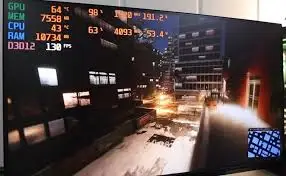
FPS Monitor brings several of these readings together in one on-screen display. This helps users identify possible performance bottlenecks without constantly leaving the game.
Common uses include:
- Monitoring frames per second while gaming.
- Checking CPU and GPU utilization.
- Viewing processor and graphics card temperatures.
- Tracking RAM and video memory usage.
- Monitoring storage and network activity.
- Comparing performance during different graphics settings.
- Recording hardware statistics for later analysis.
- Creating custom overlays for gaming and streaming setups.

Key Features of FPS Monitor
1. Real-Time FPS Counter
FPS Monitor displays the current frame rate while a game is running. It can also show additional frame-rate information, including minimum, maximum, and average FPS.
The software supports frame-time readings and 0.1% and 1% low FPS values. These measurements can help users understand whether a game is running consistently or experiencing noticeable performance drops.
2. CPU and GPU Monitoring
The application can display real-time information about the processor and graphics card.
Depending on the available hardware sensors, users can monitor:
- CPU utilization.
- GPU utilization.
- CPU and GPU temperatures.
- Clock speeds.
- Fan or cooler speeds.
- Voltage readings.
- Other supported hardware sensor values.
These readings can help identify whether a game is placing more load on the processor or graphics card.
3. RAM and VRAM Monitoring
Memory usage is another important part of gaming performance. FPS Monitor can display information about system memory and graphics memory.
This can help users understand whether a game is using a large amount of available RAM or VRAM. It is particularly useful when comparing different graphics settings, textures, and demanding game environments.
4. Storage and Network Information
FPS Monitor can also display information about hard drives, storage devices, and network activity.
These readings can provide additional context when investigating performance issues. For example, users may want to check storage activity or network conditions while a game is running.
The available readings depend on the hardware and sensors supported by the system.
5. Customizable Gaming Overlays
One of the main features of FPS Monitor is its customizable on-screen overlay.
Users can adjust the appearance of individual sensor values, including:
- Font and text size.
- Text color and style.
- Overlay position.
- Sensor visibility.
- Graph and display options.
- Text, images, rectangles, and clock elements.
You can create different overlay scenes for different games or purposes. This makes it possible to show only the information that matters instead of covering the entire screen with unnecessary statistics.
6. Hardware Alerts
FPS Monitor includes a Hardware Alerts feature that can warn users when selected readings approach critical values.
For example, you can configure alerts for high temperatures or other sensor conditions. The software can display warnings directly in the overlay so that you can notice potential hardware issues while gaming.
These alerts are monitoring notifications, not a replacement for proper cooling, hardware maintenance, or manufacturer safety guidance.
7. Performance Graphs and Statistics Logging
FPS Monitor can display hardware readings in graphical formats, such as charts and graphs.
It can also collect hardware usage statistics over a selected period and save the information to a file for later examination.
This is useful when comparing performance across gaming sessions, testing different configurations, or investigating occasional frame-rate drops.
8. Multiple Overlay Scenes
Users can prepare multiple scenes with different sensor arrangements and switch between them during gameplay.
For example, one scene can show basic FPS and GPU information, while another can display more detailed CPU, memory, and temperature readings.
The ability to organize separate scenes makes the software more flexible for different games and monitoring needs.
9. Desktop Widgets and Screenshots
FPS Monitor supports displaying system information through desktop widgets as well as in-game overlays.
It also includes a screenshot feature for capturing game screens. Users can customize the information shown in their scenes to suit their preferred layout.
10. Graphics API and Anti-Cheat Compatibility
The Steam product page lists support for games using DirectX 9, DirectX 10, DirectX 11, DirectX 12, OpenGL, and Vulkan.
It also lists compatibility with several well-known anti-cheat systems, including Valve Anti-Cheat, Easy Anti-Cheat, PunkBuster, and BattlEye.
However, overlay compatibility can vary between individual games, anti-cheat updates, and software versions. Check the developer’s current compatibility information if the overlay does not appear in a particular game.
What’s New in FPS Monitor?
The developer’s published update history includes Build 5520, released in June 2025.
The update introduced several improvements:
- Added and improved hardware support for newer graphics cards, including NVIDIA RTX 50-series models and AMD Radeon RX 9000-series models.
- Improved sensor readings for supported Intel Arc graphics cards.
- Updated compatibility information for selected Easy Anti-Cheat and BattlEye games.
- Added support for additional games, including Apex Legends DX12, REMATCH, Steel Hunters, Elden Ring Nightreign, Tarkov Arena, and GTA V Enhanced.
- Improved standard overlay scenes.
- Added new STREAM 4 and YOUTUBE 3 scenes.
The version number 7.2.3 mentioned in some download titles could not be confirmed through the official release information reviewed for this article. Check the developer’s official download page for the available installer and current build before installing.
FPS Monitor System Requirements
The Steam listing provides the following minimum system requirements:
| Component | Minimum Requirement |
|---|---|
| Operating System | Windows 7 |
| Memory | 1 GB RAM |
| Graphics | Intel, AMD, or NVIDIA graphics card |
| DirectX | Version 11 |
| Storage | 15 MB available space |
| Permissions | Administrator rights required |
These are the minimum requirements published on the Steam product page, not recommended specifications for every modern game.
Important: Although the software listing includes Windows 7, the Steam client itself requires Windows 10 or later. Users installing through Steam should check the current Steam operating-system requirements as well.
Actual monitoring capabilities and sensor availability depend on your processor, graphics card, motherboard, drivers, and other hardware components.
How to Download and Install FPS Monitor
For a legitimate installation, use the developer’s official website or the software’s Steam store page.
- Visit the official FPS Monitor website.
- Open the download section.
- Choose the available demo or download option.
- Download the installer from the official source.
- Run the installer and follow the on-screen instructions.
- Complete the installation and launch FPS Monitor.
- Select the hardware sensors you want to display.
- Customize the overlay position, colors, and text size.
- Start a supported game and check whether the overlay appears.
The official website provides a demo, while purchasing a license removes demo restrictions. Users who purchase a license should follow the developer’s official activation instructions.
Avoid unauthorized activation codes, modified installers, and unofficial license files. Never disable security software to install a monitoring utility.
FPS Monitor Alternatives
If you want to monitor your PC’s performance, several other utilities offer hardware monitoring or in-game performance information.
1. Argus Monitor
Argus Monitor is another hardware monitoring utility. It focuses on system temperatures, fan control, and storage health information, making it useful for users who want to keep track of their computer’s hardware condition.
You can read our Argus Monitor overview for more information about this type of monitoring software.
2. Built-in Game Performance Overlays
Some graphics card software and gaming platforms provide their own performance overlays. These can be useful if you only need basic FPS, GPU, or CPU information without installing a separate monitoring application.
3. Hardware Monitoring Utilities
Dedicated hardware monitoring applications can provide detailed sensor readings, temperature information, clock speeds, and other system statistics. The best choice depends on which components you want to monitor and which sensors your computer supports.
Frequently Asked Questions
What does FPS Monitor do?
FPS Monitor displays frame rates and hardware performance information over games or on the desktop. It can show readings such as FPS, CPU and GPU usage, temperatures, memory, and other supported sensor values.
Is FPS Monitor free?
The developer provides a free demo. Purchasing an official license removes demo restrictions. Check the official website for current license details.
Can FPS Monitor show CPU and GPU temperatures?
Yes. It can display temperature readings when the relevant hardware sensors are supported and available to the software.
Does FPS Monitor support Vulkan and DirectX 12?
The Steam product page lists support for Vulkan and DirectX 12, along with DirectX 9, 10, 11, and OpenGL.
Can I customize the FPS Monitor overlay?
Yes. Users can customize sensor visibility, font, size, colors, layout, and other visual settings. Multiple scenes can also be prepared for different monitoring purposes.
Does FPS Monitor work with anti-cheat software?
The Steam listing names several anti-cheat systems, including Easy Anti-Cheat, BattlEye, PunkBuster, and Valve Anti-Cheat. Compatibility may vary by game and software version, so check current developer information for specific titles.
Does FPS Monitor support Windows 11?
The Steam minimum-requirements listing specifies Windows 7 and DirectX 11 but does not provide a separate Windows 11 requirement. Check the developer’s current compatibility information for your Windows version and hardware.
Can FPS Monitor record performance statistics?
Yes. It can collect hardware usage statistics over a defined period and write the information to a file for later analysis.
Final Thoughts
FPS Monitor is a useful Windows utility for gamers and PC enthusiasts who want more information about their computer while playing games. Its combination of FPS tracking, hardware sensors, customizable overlays, performance graphs, and alerts makes it more detailed than a basic frame-rate counter.
The software is particularly useful for identifying possible CPU, GPU, memory, and temperature-related performance issues. Its customizable scenes also allow users to create different layouts for gaming and monitoring sessions.
Before downloading, review the official system requirements and license information. Use the developer’s official download source to obtain the installer and avoid unauthorized activation files.


Recent Comments