
PDF Shaper Professional Review: Features & PDF Tools
PDF Shaper Professional Review: Features & PDF Tools
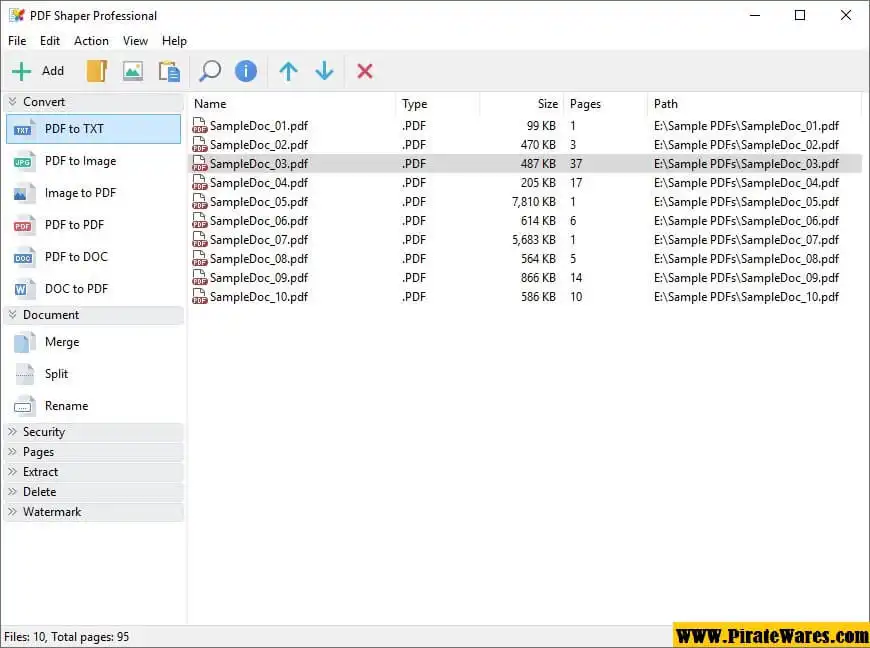
PDF Shaper is a Windows desktop application designed to help users manage and process PDF documents. Developed by Burnaware, it provides tools for merging, splitting, converting, encrypting, signing, and organizing PDF files.
The software is suitable for users who regularly work with digital documents and need a collection of PDF utilities in one desktop application. It also supports batch processing, allowing users to perform supported operations on multiple documents.
PDF Shaper is available in different editions, including Free, Premium, and Ultimate. Each edition provides a different selection of features, so choosing the right one depends on the type of PDF work you perform.
What Is PDF Shaper Used For?
PDF Shaper is a document-processing utility for Windows. It provides tools for modifying PDF files without requiring users to perform every task through a separate application.
Common uses include:
- Combining multiple PDF documents into one file.
- Splitting large documents into smaller PDF files.
- Extracting individual pages, text, and images.
- Converting PDF documents into other formats.
- Adding watermarks to documents.
- Applying password protection and digital signatures.
- Rotating, cropping, moving, and deleting pages.
- Managing PDF metadata and document properties.
Key Features of PDF Shaper
1. Merge PDF Documents
The merge function allows users to combine multiple PDF documents into a single file. This is useful when organizing reports, invoices, scanned documents, and other files that belong together.
Users can arrange the documents in the required order before creating the combined PDF.
2. Split PDF Files
PDF Shaper can split a large PDF into smaller documents. This is helpful when you only need to share selected sections of a report or separate individual chapters from a larger file.
The page-management tools also allow users to extract selected pages.
3. Convert PDF Files
PDF Shaper includes conversion tools for supported document formats.
Depending on the edition, users can convert PDF documents into Microsoft Word DOC files, text files, or images. Supported formats can also be converted back into PDF documents.
Conversion quality depends on the original document, fonts, layout, and formatting.
4. Extract Text and Images
The application provides options for extracting text and images from PDF documents.
This can be useful when users want to reuse selected content in another document or save images separately rather than manually copying each element.
Some extraction tools also support OCR-related workflows, depending on the edition.
5. Encrypt and Decrypt PDF Documents
PDF Shaper provides security tools for applying password protection to PDF documents.
The software supports AES encryption and allows users to configure document permissions. These options can help restrict certain actions on a protected document.
Users should keep their passwords secure because losing the required password may make access to a protected file difficult or impossible.
6. Digital Signatures
The software includes document-signing functionality. Digital signatures can be used to help establish the authenticity and integrity of supported PDF documents.
A digital signature is different from simply inserting a picture of a handwritten signature. The appropriate signing method depends on the document and the intended legal or business workflow.
7. Watermarks
PDF Shaper allows users to add text or image watermarks to PDF documents.
Watermarks can identify a document as a draft, indicate ownership, or communicate that a file is confidential. This is particularly useful when preparing documents for sharing.
8. PDF Page Management
The page-management tools allow users to:
- Rotate PDF pages.
- Crop page areas.
- Insert additional pages.
- Move pages into a different order.
- Delete unwanted pages.
- Extract selected pages.
These options are useful for organizing lengthy documents without recreating the entire file.
9. Batch Processing
PDF Shaper supports batch processing for supported operations. Instead of processing every document individually, users can add multiple files and perform an operation across the selected documents.
This can save time when working with collections of PDFs.
10. Metadata and Document Optimization
The software includes tools for modifying document metadata and removing selected elements such as bookmarks, annotations, form fields, and other PDF content.
These tools can help prepare documents for sharing or reduce unnecessary content. Always keep an original copy before removing information from an important PDF.
What’s New in PDF Shaper?
PDF Shaper continues to receive updates that improve its tools and compatibility.
The official website lists PDF Shaper 15.8, released on October 22, 2026.
The listed 15.8 improvements include:
- Updated toolbar icons.
- An updated PDF Viewer.
- Improved overall program performance.
- PDF security tools included in the Free edition.
- Minor interface improvements.
Version 14.8, mentioned in older software listings, was a historical release from December 2024. Its release notes included updated translations, improved ARM64 support, better x64 performance, and refinements to watermark text placement.
For a new installation, check the official release history rather than relying on an old version number in a third-party article.
PDF Shaper Free vs Premium vs Ultimate
PDF Shaper offers three main editions. The available tools differ depending on the edition.
| Feature | Free | Premium | Ultimate |
|---|---|---|---|
| Merge and split PDFs | Yes | Yes | Yes |
| Rotate, crop, and move pages | Yes | Yes | Yes |
| Extract pages, text, and images | Yes | Yes | Yes |
| Encrypt and sign documents | Yes | Yes | Yes |
| Command-line support | No | Yes | Yes |
| PDF converters | No | Yes | Yes |
| PDF viewer and printer | No | No | Yes |
| OCR | No | No | Yes |
| Commercial use | No | No | Yes |
The Free edition is intended for personal and non-commercial use. Premium provides additional conversion and command-line features, while Ultimate adds the PDF viewer, printer, OCR, and commercial-use option.
The publisher’s download page also provides trial downloads for the paid editions.
PDF Shaper System Requirements
The official PDF Shaper website lists the following supported Windows platforms:
- Windows 7
- Windows 8
- Windows 10
- Windows 11
- 32-bit and 64-bit Windows editions, depending on the product edition and installer.
The official download page lists an 8 MB Free installer and larger installers for Premium and Ultimate. The publisher does not provide a complete current CPU and RAM specification on the download page.
For the best experience, use a supported Windows installation with enough available storage and memory for the size of the documents you intend to process.
How to Download and Install PDF Shaper
For a reliable installation, use the official Burnaware website.
- Visit the official PDF Shaper download page.
- Review the Free, Premium, and Ultimate editions.
- Select the edition that matches your requirements.
- Download the appropriate Windows installer.
- Open the downloaded setup file.
- Follow the installation instructions.
- Launch PDF Shaper after installation.
- If you purchased a paid edition, follow the publisher’s license activation instructions.
The software should be installed using its original installer. Avoid modified packages, unauthorized license files, or instructions that require disabling antivirus protection.
PDF Shaper Alternatives
If you are comparing PDF applications, these options may also be worth exploring.
Foxit PDF Editor
Foxit PDF Editor is a PDF solution designed for document reading, editing, conversion, and management. Its features make it relevant for users who need more extensive PDF editing tools.
Read our Foxit PhantomPDF review and features guide for additional information.
pdfFactory Pro
pdfFactory Pro is a Windows PDF creation application that uses a virtual printer workflow. It is useful for users who want to create PDF files from documents that can be printed.
You can also explore our pdfFactory Pro review and PDF creation guide.
Choosing the Right PDF Tool
The best option depends on your workflow. PDF Shaper focuses on document processing and page management, Foxit offers a broader PDF editing environment, and pdfFactory Pro focuses on PDF creation through printing.
Compare their supported features, licensing terms, and compatibility before choosing an application.
Frequently Asked Questions
Is PDF Shaper free?
Yes. PDF Shaper provides a Free edition for personal and non-commercial use. Premium and Ultimate editions offer additional features.
What is the latest version of PDF Shaper?
The official download page lists PDF Shaper 15.8, released October 22, 2026. Older version 14.8 should not be described as the latest release.
Can PDF Shaper merge multiple PDF files?
Yes. Merging PDF documents is one of its core features. Users can combine multiple files into a single PDF.
Can PDF Shaper convert PDF to Word?
Yes. PDF-to-Word conversion is available in the paid editions listed by the publisher.
Does PDF Shaper support Windows 11?
Yes. The official website lists Windows 11 among its supported platforms.
Can PDF Shaper protect PDF documents with a password?
Yes. The software provides PDF encryption and document-permission tools. Its official feature comparison lists encryption and signing in all three editions.
Is PDF Shaper suitable for business use?
The Ultimate edition is the edition listed by the publisher for commercial use. The Free and Premium editions are not listed as suitable for business use in the official comparison.
Final Thoughts
PDF Shaper is a practical Windows application for users who regularly manage PDF documents. Its tools for merging, splitting, converting, extracting, encrypting, signing, and organizing pages cover many common document-processing tasks.
The Free edition provides useful tools for personal users, while Premium and Ultimate add conversion, OCR, command-line, and other advanced functionality.
Before installing, check the current version, edition comparison, and licensing conditions on the official website. This helps ensure that you choose the correct version for your document-processing needs.



Recent Comments