
Automatic Mouse and Keyboard 6.7.0.2 Review & Features
Automatic Mouse and Keyboard 6.7.0.2 Review: Features & Guide
Automatic Mouse and Keyboard is a Windows automation application developed by Robot Soft Studio. It helps users automate repetitive computer activities by recording, editing, and replaying mouse and keyboard actions.
The software can move the cursor, perform mouse clicks, enter text, locate specific images on the screen, and execute predefined commands. Users can also organize multiple actions into scripts and schedule tasks to run automatically.
It can be useful for office work, repetitive data entry, software testing, and other tasks that involve repeating the same computer operations.
This guide covers version 6.7.0.2, its main features, practical uses, Windows compatibility, and installation process.
What Is Automatic Mouse and Keyboard?
Automatic Mouse and Keyboard is a desktop automation tool that reduces the need to perform repetitive actions manually.
Users can record mouse movements and keyboard inputs, then replay those actions whenever necessary. They can also create automation scripts by adding individual commands and arranging them in a specific order.
For example, you can configure a script to open an application, enter text, click a particular location, and repeat the sequence. This makes routine computer activities easier to manage.
The application also includes advanced automation options, such as image recognition, background operations, variables, and conditional commands.
Main Features of Automatic Mouse and Keyboard
1. Record and Replay Mouse Actions
The software can record mouse activities and repeat them later.
This includes common operations such as moving the cursor, clicking buttons, and interacting with different screen areas. Users can replay recorded actions without manually performing the entire sequence again.
2. Keyboard Automation
Automatic Mouse and Keyboard can simulate keyboard inputs and automatically enter predefined text.
This feature is useful for repetitive typing, form entry, and other tasks that require the same keyboard commands multiple times.
Users can also combine keyboard operations with mouse actions in a single automation script.
3. Image Recognition and Smart Click
One of the application’s useful features is its ability to locate a specific image on the screen.
Instead of relying entirely on fixed screen coordinates, users can provide a small reference image. The application searches for that image and can perform the configured action when it finds a match.
This can make automation more flexible when application windows or screen elements move.
4. Edit and Optimize Recorded Actions
Recorded actions do not have to remain exactly as they were captured.
Users can edit individual steps, adjust their order, and optimize the automation sequence. They can also change action settings to make scripts more suitable for their requirements.
This is helpful when a recorded sequence contains unnecessary movements or delays.
5. Background Automation
Automatic Mouse and Keyboard supports background operations for compatible tasks.
This allows users to automate certain activities without relying entirely on visible mouse movements and clicks. However, background operation depends on the target application and the specific command being used.
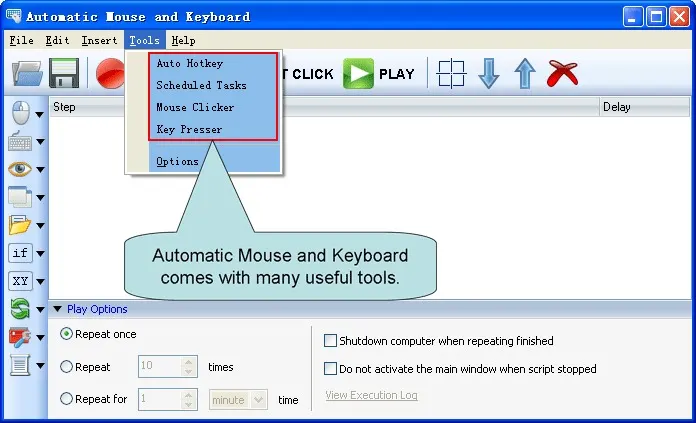
6. Scheduled Tasks
The application provides scheduling options for running automation tasks automatically.
Users can configure scripts to start at selected times, helping them manage repetitive operations without manually launching every task.
This can be useful for routine desktop workflows and scheduled activities.
7. Compile Scripts into EXE Files
Automatic Mouse and Keyboard can compile supported automation scripts into executable files.
This feature allows users to package scripts for easier execution. Some compilation and customization options may depend on the registered license.
8. Advanced Script Commands
The application includes additional tools for creating more complex automation workflows.
Depending on the script, users can work with:
- Variables and functions
- Conditional statements
- Loops and repeated actions
- Clipboard operations
- Window commands
- File and folder operations
- Keyboard shortcuts
- Execution logs
- Debugging tools
These options provide more control than a basic auto-clicker.
What Can You Do With Automatic Mouse and Keyboard?
The application supports several everyday automation scenarios.
Repetitive Data Entry
Users can automate repeated typing and clicking operations when entering similar information into compatible applications.
Software Testing
Developers and testers can use recorded actions to repeat certain application workflows. This can help with routine checks, although it does not replace dedicated automated testing frameworks.
Office Productivity
The software can automate repetitive desktop tasks, including opening applications, entering text, and performing predefined mouse operations.
Routine Computer Operations
Users can create scripts for recurring activities and schedule them when appropriate.
Always review an automation script before running it, especially when it can modify files, submit forms, or perform actions in important applications.
What’s New in Automatic Mouse and Keyboard?
The version covered in this article is 6.7.0.2. However, I could not verify its exact release date or a complete official change log.
Robot Soft Studio’s current official product page lists version 6.7.9.2. Therefore, version 6.7.0.2 should be treated as an older release rather than the latest version.
For current improvements, compatibility information, and the newest installer, check the developer’s official product page.
Automatic Mouse and Keyboard System Requirements
Robot Soft Studio lists support for several Windows versions, including Windows 11, Windows 10, Windows 8, Windows 7, Windows Vista, and older Windows editions.
The developer does not provide a complete current minimum hardware specification on its main product page.
Before installation, consider the following:
- Operating system: Supported Windows versions
- Processor: Compatible Windows PC processor
- RAM: Sufficient memory for Windows and the applications being automated
- Storage: Enough free disk space for the installer and application
- Input devices: Working mouse and keyboard
- Permissions: Administrator access may be required for certain installation or automation operations
The software is designed for Windows. Do not assume that its Windows installer works natively on macOS, Linux, Android, or iOS.
How to Install Automatic Mouse and Keyboard
Follow these steps to install the application safely:
- Visit the official Robot Soft Studio website.
- Open the Automatic Mouse and Keyboard product page.
- Select the official free trial download.
- Save the installer to your Windows computer.
- Open the downloaded installation file.
- Follow the setup instructions.
- Complete the installation and launch the application.
- Try a sample script or record a simple mouse and keyboard sequence.
- Test the automation in a suitable application before using it for important tasks.
The developer provides a trial version so users can evaluate the software before purchasing a license. Some trial restrictions apply.
For full functionality, purchase an appropriate license from the official developer and follow its registration instructions. Avoid unofficial key generators, modified installers, and replacement activation files.
Tips for Using Automatic Mouse and Keyboard
A few practical precautions can make automation more reliable:
- Start with a simple script before creating complex workflows.
- Use short delays when an application needs time to respond.
- Test scripts in a safe environment.
- Check the target window before running mouse-click automation.
- Keep a backup of important files before automating file operations.
- Review repeated actions to prevent accidental submissions or unwanted changes.
- Use image recognition when fixed screen coordinates are unreliable.
These practices can help reduce errors and make automated tasks easier to manage.
Frequently Asked Questions
What is Automatic Mouse and Keyboard used for?
It automates repetitive mouse and keyboard activities. Users can record actions, create scripts, repeat tasks, enter text, and schedule selected operations.
Is Automatic Mouse and Keyboard free?
Robot Soft Studio offers a free trial. However, trial restrictions apply, and users need an appropriate paid license to unlock the full functionality.
Does Automatic Mouse and Keyboard work on Windows 11?
Yes. Robot Soft Studio lists Windows 11 among the supported operating systems.
Is Automatic Mouse and Keyboard available for Mac?
The developer lists the product as Windows software. It does not provide an official native macOS edition on its product page.
Can the software record mouse and keyboard movements?
Yes. It can record mouse and keyboard actions, edit the recorded sequence, and replay it when needed.
Can Automatic Mouse and Keyboard click a specific image?
Yes. Its image-recognition functionality can locate a reference image on the screen and perform configured actions when the image is detected.
Can I create executable files from automation scripts?
Yes. The application supports compiling scripts into EXE files. Some related features may require a registered license.
What is the latest version of Automatic Mouse and Keyboard?
The official Robot Soft Studio product page currently lists version 6.7.9.2. The version discussed in this article, 6.7.0.2, is an older build.
Final Verdict
Automatic Mouse and Keyboard is a useful Windows automation application for people who regularly repeat the same mouse and keyboard operations. Its recording and playback tools make basic automation straightforward, while image recognition, scheduled tasks, background operations, and script commands provide additional flexibility.
Version 6.7.0.2 may be relevant to users looking for information about an older release. However, anyone installing the application for the first time should check the developer’s website for the latest version and licensing information.
Overall, it is worth considering for repetitive desktop workflows, data entry, and simple automation tasks.


Recent Comments