
M3 Data Recovery Review: Features, File Recovery & Setup Guide
M3 Data Recovery Review: Features, File Recovery & Setup Guide
M3 Data Recovery is a Windows data recovery application designed to help users retrieve deleted, lost, or inaccessible files from different storage devices. It can be useful when important documents, photos, videos, and other files disappear because of accidental deletion, formatting, partition loss, or file system corruption.
The software provides recovery options for internal hard drives, external drives, SSDs, USB flash drives, and supported memory cards. It also includes features for scanning RAW partitions and recovering information from supported BitLocker-encrypted drives.
M3 Data Recovery offers a trial edition that allows users to scan a storage device and preview supported recoverable files before deciding whether to purchase a license.
This guide covers its main features, supported devices, recovery process, system requirements, licensing, and important precautions to take before attempting data recovery.
What Is M3 Data Recovery?
M3 Data Recovery is a Windows utility developed for recovering lost or deleted information from storage devices.
It is designed for situations such as:
- Accidentally deleted files.
- Files removed after emptying the Recycle Bin.
- Data lost after formatting a drive.
- Inaccessible or RAW partitions.
- Missing or deleted partitions.
- Corrupted file systems.
- Lost information from supported BitLocker-encrypted drives.
The application provides scanning and file-preview tools to help users identify recoverable information before saving it.
Important: Data recovery is not guaranteed. The results depend on the condition of the storage device, the cause of data loss, and whether the original information has been overwritten.
Main Features of M3 Data Recovery
1. Deleted File Recovery
The software can scan supported storage devices for files that have been deleted accidentally.
This can be useful when files are removed using the Delete or Shift + Delete shortcuts or when the Recycle Bin has been emptied.
Users can scan the relevant location, review the results, and preview supported files before attempting recovery.
2. Formatted Drive Recovery
Formatting a drive can make its existing files inaccessible. However, some data may remain recoverable if it has not been overwritten.
M3 Data Recovery can scan supported formatted partitions to search for recoverable files.
For the best chance of recovery, avoid saving new files to the formatted drive before scanning it.
3. RAW Drive Recovery
A RAW partition is a storage volume whose file system Windows cannot properly recognize.
This can happen because of file system corruption, unexpected shutdowns, unsafe device removal, or storage problems.
M3 provides RAW drive recovery functionality to scan affected partitions and retrieve accessible files. Its related RAW Drive Recovery product also includes file-system repair functionality for supported situations.
Not every RAW drive can be repaired. If the device has physical damage or unreadable sectors, software recovery may not be sufficient.
4. Lost Partition Recovery
Partitions can disappear because of accidental deletion, partition-table problems, formatting, or other storage errors.
M3 Data Recovery provides tools to search for lost or deleted partitions and identify files that may still be recoverable.
This can be useful when a drive appears to have missing storage space or a partition no longer appears correctly in Windows.
5. BitLocker Data Recovery
BitLocker is Microsoft’s drive-encryption technology. It protects information by encrypting a storage volume.
M3 Data Recovery provides support for recovering information from supported BitLocker-encrypted drives.
Access to encrypted data requires the correct BitLocker password or 48-digit recovery key. Recovery software cannot legitimately bypass encryption when the required credentials are unavailable.
6. Deep Scan and Quick Scan
The application provides scanning options for locating deleted or lost information.
A quick scan is useful for finding recently deleted files, while a deeper scan can examine the storage device more extensively.
Deep scans may take longer, particularly when working with large drives or devices experiencing read errors.
7. File Preview
Preview functionality helps users inspect supported files before attempting recovery.
The official trial information describes the ability to scan for lost data and preview supported documents and photos. This is useful for checking whether the files appear recoverable before purchasing a license.
A preview does not guarantee that every recovered file will open correctly.
8. Multiple Storage Devices
M3 Data Recovery is designed to work with supported storage devices, including:
- Internal hard drives.
- External hard drives.
- SSDs.
- USB flash drives.
- SD cards.
- CF cards.
- Other supported memory cards and storage media.
Device compatibility and recovery results depend on the file system and the physical condition of the storage device.
9. Support for Different File Types
The developer lists support for more than 1,000 file types and formats across categories such as:
- Documents and spreadsheets.
- Photos and images.
- Videos and movies.
- Audio files.
- Email files.
- Compressed archives.
- Other supported data formats.
The actual ability to recover a file depends on its condition and whether the original data has been overwritten.
M3 Data Recovery: How the Recovery Process Works
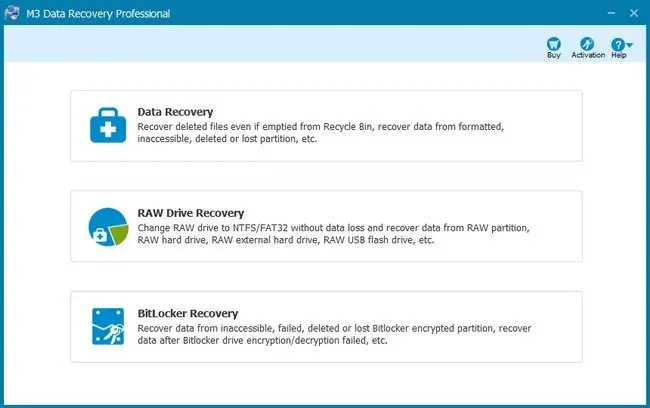
The general recovery workflow involves three stages.
Step 1: Select a Recovery Module
Open the application and choose the module that matches the data-loss situation.
Depending on the available edition, options may include regular data recovery, RAW drive recovery, and BitLocker recovery.
Step 2: Select a Storage Location and Scan
Choose the drive or partition that contains the lost files.
Start the scan and allow it to complete. For more difficult data-loss cases, use the available deep-scan option.
Step 3: Preview and Recover Files
Review the scan results using the available file filters and search tools.
Preview supported files to check whether they appear recoverable. Select the required files and save them to a different, healthy storage device.
Critical recovery advice: Never save recovered files back to the same drive or partition from which you are recovering data. Doing so can overwrite other lost files that have not yet been recovered.
Supported Operating Systems and File Systems
The developer’s Windows product information lists support for:
| Category | Listed support |
|---|---|
| Windows | Windows 11, 10, 8.1, 8, 7, Vista, XP |
| Windows Server | Supported server editions listed by the developer |
| File systems | NTFS, FAT32, exFAT |
| Storage devices | HDD, SSD, USB drives, SD cards and supported memory cards |
The exact compatibility can vary between M3 product editions and releases. Check the official product page before installing an older version.
M3 Data Recovery’s Windows compatibility should not be confused with separate M3 products designed for macOS.
M3 Data Recovery System Requirements
The developer’s product information lists the following minimum hardware requirements for M3 Data Recovery:
| Component | Listed minimum |
|---|---|
| Processor | x86-compatible CPU |
| RAM | 128 MB |
| Installation disk space | 32 MB |
These are published minimum requirements, not recommended specifications for comfortable use on a modern computer. Actual performance depends on the storage device, scan size, operating system, and recovery workload.
For current Windows compatibility, check the developer’s download page.
Is M3 Data Recovery Free?
M3 Data Recovery provides a trial edition and paid licensing options.
The trial edition allows users to scan for lost files and preview supported recoverable content. Paid editions provide additional recovery functionality according to the selected license.
The developer lists different licensing options for home and professional use. Features, license duration, and permitted usage can vary between editions.
Before purchasing, scan the affected drive and preview the files you need. This helps you evaluate whether the software can identify the data you want to recover.
How to Download and Install M3 Data Recovery
For the genuine application, use the developer’s official website.
- Open the official M3 Data Recovery website.
- Find the Windows data recovery product page.
- Review the supported operating systems and features.
- Download the installer from the official source.
- Open the downloaded setup file.
- Follow the installation instructions.
- Launch M3 Data Recovery.
- Select the appropriate recovery module.
- Scan the affected drive and preview the results.
If you decide to purchase the full version, follow the official activation instructions supplied with your license.
Avoid modified installers, unauthorized patches, and key generators. They can expose your computer and personal files to security risks.
Important Precautions Before Recovering Data
Data recovery requires care because incorrect actions can reduce the chances of retrieving lost information.
Follow these precautions:
- Stop saving new files to the affected storage device.
- Do not install recovery software on the same drive you are trying to recover.
- Save recovered files to a separate healthy drive.
- Avoid formatting a RAW or inaccessible drive before checking recovery options.
- Do not run repair commands if you are unsure whether they may modify the damaged file system.
- If the drive makes unusual clicking noises or repeatedly disconnects, stop using it and consider professional recovery services.
- Maintain regular backups to reduce the impact of future data loss.
If the information is extremely important, professional data recovery may be safer than repeated attempts with software.
Advantages of M3 Data Recovery
- Supports several common data-loss situations.
- Provides deleted-file recovery functionality.
- Includes lost partition and formatted-drive scanning.
- Offers RAW drive recovery options.
- Supports recovery from compatible BitLocker-encrypted drives when the correct credentials are available.
- Provides scanning and file-preview features.
- Supports several storage-device types.
- Offers a trial option for checking recoverability.
Limitations of M3 Data Recovery
- Recovery success is not guaranteed.
- Overwritten files may not be recoverable.
- Physical storage damage may require professional services.
- Some recovery and licensing features require a paid edition.
- Deep scans can take considerable time.
- File-system and operating-system support depends on the selected product and version.
- BitLocker recovery requires the correct password or recovery key.
Frequently Asked Questions
What is M3 Data Recovery used for?
M3 Data Recovery is used to scan supported storage devices for deleted, lost, formatted, or inaccessible files. It can also help with certain lost partition, RAW drive, and BitLocker recovery situations.
Can M3 Data Recovery recover permanently deleted files?
It can scan for permanently deleted files, but recovery depends on whether the original data has been overwritten and whether the storage device is still readable.
Can M3 Data Recovery recover files from a formatted drive?
Yes. It can scan supported formatted partitions for recoverable information. Avoid writing new data to the drive before attempting recovery.
Does M3 Data Recovery support BitLocker?
Yes. The developer lists BitLocker data recovery functionality. The correct BitLocker password or 48-digit recovery key is required to access encrypted information.
Can M3 Data Recovery repair a RAW drive?
The M3 product range includes RAW drive recovery and file-system repair functionality. Whether a RAW drive can be repaired depends on the cause and severity of the file-system damage.
Is M3 Data Recovery free?
A trial edition is available for scanning and previewing supported recoverable files. Full recovery features may require a paid license.
Can I recover files from an external hard drive?
M3 supports compatible external hard drives and other storage devices. The drive must be detected and readable enough for the software to scan it.
Should I save recovered files to the same drive?
No. Always save recovered files to a separate healthy storage device. Saving to the affected drive can overwrite data that you may still need to recover.
Does M3 Data Recovery support macOS?
The M3 Data Recovery Windows product has its own Windows compatibility information. M3 offers separate products for certain Mac recovery requirements, so check the specific product page before downloading.
Does M3 Data Recovery guarantee successful recovery?
No data recovery application can guarantee that every deleted or damaged file will be restored. Results depend on the storage condition, file-system damage, and whether data has been overwritten.
Final Verdict
M3 Data Recovery is a useful option to consider when files become inaccessible because of accidental deletion, formatting, partition loss, or certain file-system problems.
Its scanning modes, file previews, RAW recovery options, and BitLocker support make it relevant for users dealing with different Windows data-loss situations.
However, recovery results depend on the condition of the storage device. Before attempting recovery, stop using the affected drive and save recovered files to a separate storage location.
For the safest experience, download the genuine application from the developer’s website and evaluate the trial scanning results before purchasing a license.



Recent Comments