
VLC Media Player Free Download
VLC Media Player 3.0.24 Free Download for PC 2026
VLC Media Player Free Download is one of the most popular searches among Windows users looking for a reliable video and audio player. VLC Media Player is a free, open-source multimedia application that allows users to play videos, music, DVDs, audio CDs, and different media formats without installing additional codec packs in most cases.
Developed by the VideoLAN project, VLC is known for its simple interface, wide format compatibility, subtitle support, streaming capabilities, and useful playback controls. It is suitable for beginners as well as advanced users who want more control over their media playback.
The latest version covered in this article is VLC Media Player 3.0.24, released in September 2026. This release includes important security improvements, updated libraries, and additional media playback enhancements.
What Is VLC Media Player?
VLC Media Player is a free and open-source multimedia player designed to play a wide range of audio and video formats. It supports local media files, discs, webcams, network streams, and other multimedia sources.
Unlike some media players, VLC does not require users to purchase a subscription or activate a premium account. Its core software is available free of charge.
VLC is compatible with Windows, macOS, Linux, Android, and other supported platforms. It is also lightweight enough to work on many older computers.
What’s New in VLC Media Player 3.0.24?
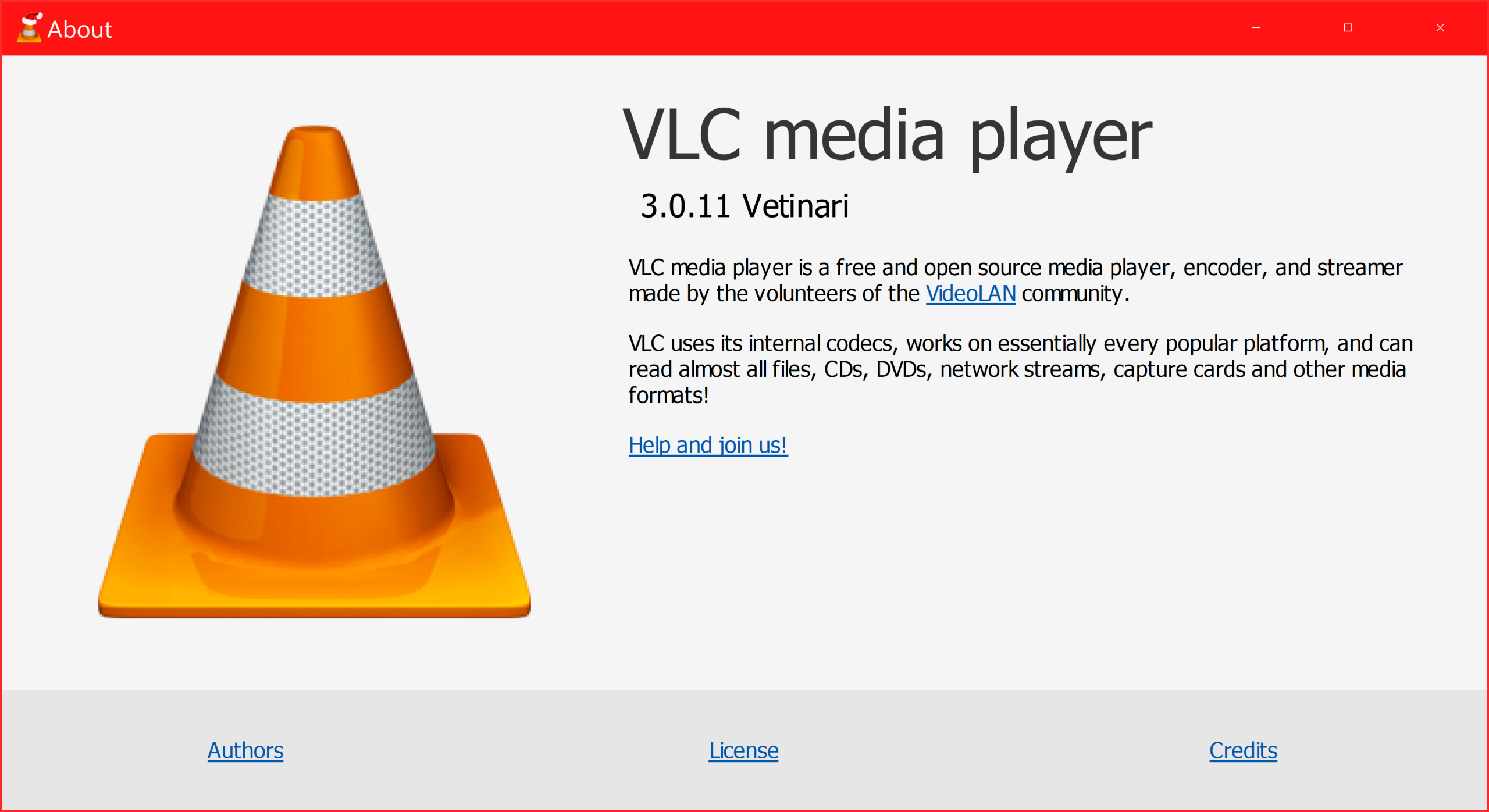
VLC 3.0.24 is an important update in the VLC 3.0 Vetinari branch. According to the official VideoLAN release notes, this version focuses on security, compatibility, and media support.
Some notable improvements include:
- More than 130 security fixes across VLC and bundled libraries
- Updated FFmpeg from version 4.4 to 8.1.2
- Updates to 49 third-party libraries
- Added ATRAC3 and ATRAC9 decoding
- CEA-708 closed captions support in MP4
- SRT listener mode improvements
- SFTP public key authentication options
- Windows DirectShow capture improvements
- Fixes for certain Windows audio and video rendering issues
- Improved subtitle language detection and WebVTT handling
These improvements make updating to the latest version important, especially for users who still have older installations.
Key Features of VLC Media Player
1. Supports Multiple Video Formats
One of VLC’s biggest advantages is its ability to play many different video formats. Users can open common media files without searching for separate codec packs.
Supported formats include:
- MP4
- MKV
- AVI
- MOV
- WMV
- WebM
- MPEG
- FLV
- 3GP
Actual playback depends on the file’s codec and encoding.
2. Audio and Music Playback
VLC is not only a video player. It also works as a music player with support for many popular audio formats.
You can create playlists, adjust volume, control playback speed, and manage audio tracks.
Commonly supported audio formats include MP3, FLAC, AAC, WAV, OGG, and other formats.
3. Subtitle Support
VLC provides built-in subtitle controls that make watching movies and videos easier.
Users can load external subtitle files, change subtitle timing, select subtitle tracks, and adjust subtitle appearance.
Supported subtitle formats include SRT and other common subtitle types.
4. Hardware-Accelerated Video Decoding
VLC supports hardware-accelerated decoding on compatible systems. This can help reduce CPU usage when playing high-resolution videos.
The available acceleration depends on your graphics hardware, drivers, operating system, and video format.
5. Play DVDs and Audio CDs
VLC can play supported DVDs, audio CDs, and VCDs. This makes it useful for users who still keep movies and music on physical discs.
Some disc playback features may depend on the operating system and disc protection.
6. Network Streaming
VLC supports different streaming protocols and can open compatible network media sources.
Users can also access media from supported network locations and streaming sources.
7. Video and Audio Conversion
VLC includes a conversion feature that allows users to convert supported media files into other formats.
You can select an input file, choose an available output profile, and save the converted file to your computer.
For additional conversion options, you can also explore FoneLab Video Converter Ultimate and Any Video Converter Ultimate on PirateWares.
8. Equalizer and Audio Effects
VLC includes audio controls that help users customize their listening experience.
Available options include an equalizer, audio effects, volume adjustment, and audio synchronization controls.
9. Playback Speed Control
Users can increase or decrease playback speed according to their needs.
This feature is useful for watching tutorials, reviewing lectures, or quickly going through long videos.
10. Simple and Customizable Interface
VLC has a straightforward interface that is easy to understand. Users can also customize its appearance through supported skins and interface settings.
VLC Media Player Features at a Glance
- Free and open-source multimedia player
- Plays popular video and audio formats
- Built-in subtitle support
- DVD and audio CD playback
- Hardware-accelerated decoding on supported systems
- Network streaming support
- Audio equalizer and effects
- Video and audio conversion
- Playback speed controls
- Playlist management
- Customizable interface
- Available across multiple operating systems
VLC Media Player System Requirements
VLC is designed to work across a wide range of computers. Its actual performance depends on the media format, video resolution, operating system, and hardware.
Windows Requirements
- Operating System: Windows XP SP3 through Windows 11, according to VideoLAN’s Windows download information
- Processor: Compatible Windows-supported processor
- RAM: Depends on the operating system and media being played
- Storage: Space required for the installer and application
- Internet: Required for downloading updates and online streaming
- Architecture: Available installers include 32-bit, 64-bit, and ARM64
For the best experience, use a supported Windows version and updated graphics drivers.
How to Download and Install VLC Media Player on Windows
Follow these simple steps to install VLC Media Player:
- Visit the official VideoLAN website.
- Open the VLC download section.
- Select the Windows version suitable for your computer.
- Download the installer.
- Open the downloaded setup file.
- Select your preferred installation language.
- Follow the setup instructions.
- Choose the installation components you need.
- Complete the installation process.
- Launch VLC Media Player from the Start menu.
You can download VLC directly from the official website:
Official download: https://www.videolan.org/vlc/
Always download the installer from VideoLAN or another trusted distribution source.
How to Play Videos in VLC Media Player
After installing VLC, you can start playing media files easily.
- Open VLC Media Player.
- Click the Media menu.
- Select Open File.
- Browse to the video or audio file.
- Select the file and click Open.
- Use the playback controls to pause, resume, or change the volume.
You can also drag and drop supported media files directly into the VLC window.
How to Add Subtitles in VLC
If your video does not include subtitles, you can load an external subtitle file.
- Open your video in VLC.
- Select the Subtitle menu.
- Choose Add Subtitle File.
- Browse to your subtitle file.
- Select the file and open it.
- VLC will display the available subtitle track.
You can also adjust subtitle synchronization if the text does not match the video timing.
Is VLC Media Player Completely Free?
Yes. VLC Media Player is free and open-source software. Users can download, install, and use it without purchasing a subscription or entering a product key.
There is no official VLC Premium or paid activation version required for its standard multimedia playback features.
Be careful with websites advertising VLC Media Player Crack, activation keys, or paid unlocked editions. Such offers are unnecessary for the official VLC application and may distribute modified or unsafe files.
Advantages and Disadvantages of VLC Media Player
Advantages
- Completely free and open-source
- Supports many popular media formats
- No standard subscription requirement
- Includes subtitle and audio controls
- Supports DVDs and audio CDs
- Provides network streaming features
- Includes media conversion options
- Available for multiple platforms
Disadvantages
- The interface may look basic to some users.
- Advanced settings can be confusing for beginners.
- Some damaged or unusual media files may not play correctly.
- Hardware acceleration depends on compatible hardware and drivers.
- Certain streaming and disc features may require additional configuration.
Frequently Asked Questions
1. Is VLC Media Player free to download?
Yes. VLC is free and open-source software. You do not need a paid subscription or activation key to use its standard features.
2. What is the latest VLC Media Player version?
This article covers VLC Media Player 3.0.24, released in September 2026. Check the official VideoLAN download page for the current release.
3. Does VLC support Windows 11?
Yes. VideoLAN lists Windows 11 among the supported Windows versions for VLC.
4. Can VLC play MKV files?
Yes. VLC supports MKV files and many other popular video formats. Playback can depend on the codecs and encoding used inside the file.
5. Can VLC play MP4 videos?
Yes. VLC supports MP4 playback, including many common video and audio codecs.
6. Can VLC download YouTube videos?
VLC is primarily a multimedia player and does not provide a guaranteed, supported YouTube video-download feature. Streaming compatibility can change as online services update.
7. Does VLC support subtitles?
Yes. VLC supports external subtitle files and provides controls for subtitle timing and track selection.
8. Can VLC convert video files?
Yes. VLC includes a media conversion feature that can convert supported input files into available output formats.
9. Is VLC safe to install?
The official VLC application is distributed by the VideoLAN project. Download it from the official website and avoid modified installers from unknown sources.
10. Does VLC work on macOS and Linux?
Yes. VLC is a cross-platform application with versions available for macOS, Linux, and several other operating systems.
Final Thoughts
VLC Media Player 3.0.24 remains a useful choice for users who want a free multimedia player with broad format compatibility and practical playback features. It supports video and audio playback, subtitles, streaming, media conversion, and many other useful functions.
Its open-source nature and availability across different operating systems make it suitable for students, home users, and professionals.
If you need a simple media player without subscription fees or product activation, VLC Media Player is worth considering. Download the official version from VideoLAN to get the latest supported features and security improvements.



Recent Comments