
Cinch Audio Recorder Review: Features, Audio Quality & System Requirements
Cinch Audio Recorder Review: Features, Audio Quality & System Requirements
Cinch Audio Recorder is a desktop application designed to capture audio playing on a computer and save recordings as digital music files. It is aimed at music listeners, podcast fans, and users who want to organize audio recordings without complicated recording equipment.
The software focuses on recording system audio, identifying songs, and organizing music files. In addition, it offers features such as automatic ID3 tagging, album artwork, silence detection, and ringtone creation, depending on the edition.
Cinch Audio Recorder has appeared in several editions and version numbers over time. This guide examines its main capabilities, audio formats, recording workflow, compatibility, and important details to check before installation.
What Is Cinch Audio Recorder?
Cinch Audio Recorder is an audio recording utility that captures sound played through a computer. For example, users can record compatible browser audio, internet radio, podcasts, and other system playback.
Unlike a traditional microphone recorder, its main purpose is to capture computer playback directly. Therefore, users do not necessarily need an external microphone or a separate recording device for these tasks.
The application also helps organize recordings by identifying available track information. As a result, users can manage song titles, artist names, album details, and artwork more easily.

Key Features of Cinch Audio Recorder
1. System Audio Recording
The main feature is its ability to capture audio playing on a computer. Users can start a recording session while compatible music players, browsers, or other audio applications play sound.
This approach is useful for recording internet radio, podcasts, and other permitted audio sources. However, recording quality depends on the original playback and the available output settings.
2. MP3 and WAV Output
Cinch Audio Recorder has advertised MP3 and WAV recording options. These formats serve different purposes.
- MP3: A compressed format that provides broad compatibility and smaller files.
- WAV: An uncompressed format that generally requires more storage.
Some newer Cinch editions also advertise formats such as FLAC, ALAC, and AAC/M4A. However, available formats depend on the specific product edition, so check its output menu before recording.
3. Automatic ID3 Tagging
Music tags help users organize large audio collections. Cinch can identify available information and add details such as:
- Track title
- Artist name
- Album name
- Album artwork
- Other available metadata
Consequently, recordings can appear more organized in compatible music players. Nevertheless, automatic identification depends on whether the service can recognize the recording correctly.
4. Album Artwork and Music Information
The software advertises automatic album artwork retrieval for supported recordings. This feature makes music libraries easier to browse because users can see cover images alongside track information.
In addition, users may be able to review or edit available metadata. Correct tags also make searching and sorting a music collection more convenient.
5. Silent Recording
Some Cinch editions offer a silent recording mode. This feature allows the application to capture computer audio while muting speaker output.
It can be useful in shared environments where playing sound through speakers would disturb other people. However, the availability of this function depends on the installed edition and its recording method.
6. Automatic Track Splitting
Long recording sessions can contain several songs or separate audio segments. Cinch provides track-splitting options that can divide recordings automatically.
Depending on the edition, the software may detect silence or use track information to identify when one song ends and another begins.
Users can also adjust detection settings where supported. Therefore, it is worth testing a short recording first to make sure the application separates tracks correctly.
7. Ringtone Creation
Cinch has advertised a built-in ringtone editor for creating shorter audio clips from recordings.
Users can select a section of a track, adjust its beginning and ending points, preview the result, and export the selected audio.
This feature can help create custom ringtone files for compatible phones. However, users should only use audio they have permission to record and reuse.
8. Audio Format and Quality Settings
Recording settings help users choose an appropriate balance between file size and audio quality.
Depending on the edition, available options may include output format and MP3 bitrate. A higher bitrate generally produces a larger compressed file, while WAV and other lossless formats require more storage.
For the best results, start with a short test recording. Then review the sound quality and file size before recording a longer session.
9. Simple Recording Interface
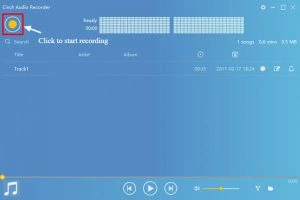
Cinch focuses on a straightforward recording workflow. Users can start a session, monitor the recording, and review saved tracks through the application interface.
This approach can be useful for beginners who do not need a full digital audio workstation. Moreover, automatic tagging and track organization can reduce some manual work after recording.
Supported Audio Formats
Cinch editions have advertised different input and output formats. Commonly listed formats include:
| Audio format | Typical purpose |
|---|---|
| MP3 | Compressed music with broad device support |
| WAV | Uncompressed audio |
| FLAC | Lossless compressed audio |
| AAC / M4A | Compressed audio for compatible players |
| ALAC | Apple Lossless audio |
Do not assume that every Cinch release supports every format. Instead, check the output options in your installed edition.
Cinch Audio Recorder 4.1.2: Version Information
The original post refers to Cinch Audio Recorder 4.1.2. However, I could not verify an official release record confirming this exact build, its publication date, or its complete changelog.
Cinch’s current official product pages list newer editions and different version numbers. Therefore, version 4.1.2 should not be described as the latest 2026 release.
Before installing an older build, compare its features and compatibility with the current official download information. Also, avoid unofficial packages that advertise pre-activated software or unauthorized license keys.
System Requirements
The original listing mentions Windows XP, Windows Vista, Windows 7, Windows 8, Windows 10, 786 GB RAM, and 125 MB of storage. These details are inconsistent and should not be treated as verified requirements for version 4.1.2.
The current Cinch Audio Recorder Ultimate download information lists the following Windows requirements:
- Operating system: Windows 10 or Windows 11
- Processor: 64-bit x64
- RAM: 1 GB or higher
- Storage: 200 MB free disk space
- Internet: Required for activation and online recognition features
- Audio: Windows-compatible sound output
These specifications refer to the current Ultimate edition, not necessarily the older 4.1.2 release. Always check the requirements for the exact installer you intend to use.
Is Cinch Audio Recorder Available for Mac?
Cinch has also advertised a separate macOS edition. However, Windows and Mac installers are different, and their system requirements vary.
The current Ultimate download information lists macOS 13.5 or later for its Mac edition. Older Cinch editions may have different compatibility details.
Therefore, Mac users should download the installer specifically provided for macOS rather than trying to run the Windows setup file.
How to Install Cinch Audio Recorder
For a safer installation, use the official installer and follow the vendor’s instructions.
- Visit the official Cinch Audio Recorder website.
- Open the download section.
- Select the installer for your operating system.
- Check the version and system requirements.
- Download the installer from the official source.
- Open the downloaded file and follow the setup instructions.
- Launch the application after installation.
- Test a short recording and review the output file.
- If you purchase the software, activate it using the license information supplied by the vendor.
Avoid modified installers, unauthorized activation tools, and unknown key generators. Also, never disable antivirus protection to run an unverified setup file.
Is Cinch Audio Recorder Worth Using?
Cinch Audio Recorder may be useful for people who regularly capture computer audio and want automatic music organization. Its advertised features include system audio recording, track identification, metadata management, and ringtone creation.
However, the available functions differ between editions. Consequently, users should compare the current product features, supported formats, trial limitations, and licensing terms before purchasing.
It is also important to respect copyright rules and the terms of streaming services. Recording or redistributing protected content without permission may violate applicable terms or laws.
Frequently Asked Questions
1. What is Cinch Audio Recorder used for?
Cinch Audio Recorder captures audio playing on a computer and helps users save and organize recordings. Its advertised features include automatic song identification and metadata management.
2. Can Cinch Audio Recorder record system audio?
Yes. System audio recording is one of its main advertised functions. It can capture compatible audio playback from browsers, music applications, and other computer sources.
3. Does Cinch Audio Recorder support MP3?
Yes. MP3 is one of the commonly advertised recording formats. Some editions also list WAV, FLAC, AAC/M4A, and ALAC.
4. Can Cinch automatically identify songs?
Cinch advertises automatic music recognition and ID3 tagging. When identification succeeds, it can add available track information such as the title, artist, album, and artwork.
5. Can I create ringtones with Cinch Audio Recorder?
Some Cinch editions include a ringtone editor. It allows users to select a section of a recording, preview it, and export a shorter audio file.
6. Is Cinch Audio Recorder 4.1.2 the latest version in 2026?
Its status as the latest version could not be verified. The official product website lists newer editions with different version numbers.
7. Does Cinch Audio Recorder work on Windows 11?
The current Cinch Audio Recorder Ultimate edition lists Windows 11 support. However, compatibility for older releases such as 4.1.2 should be checked separately.
8. Is Cinch Audio Recorder free?
The current Ultimate edition offers a limited free trial. Its download information lists a nine-song trial, while unlimited recording requires a paid license. Trial conditions can differ between editions.
Final Verdict
Cinch Audio Recorder is designed for convenient system audio capture and music organization. Its advertised features include MP3 and WAV recording, automatic ID3 tagging, album artwork, track splitting, and ringtone creation.
For users who want a simple recording workflow, these tools may be useful. Nevertheless, version 4.1.2’s exact release information and compatibility remain unverified. Check the official product page for the latest edition, supported operating systems, and current licensing details before installation.



Recent Comments