
inSSIDer Review: Wi-Fi Network Analyzer & Troubleshooting Guide
inSSIDer Review: Wi-Fi Network Analyzer & Troubleshooting Guide
inSSIDer is a Wi-Fi network analysis tool developed by MetaGeek. It helps users inspect nearby wireless networks, compare signal strength, identify channel congestion, and troubleshoot common Wi-Fi problems.
The software displays useful information about wireless access points, including network names, channels, signal levels, and security details. As a result, users can better understand their wireless environment and make informed decisions about router placement and channel selection.
inSSIDer is useful for home users, network administrators, IT technicians, and professionals who manage wireless networks.
What Is inSSIDer?
inSSIDer is a wireless network analyzer designed to help users examine nearby Wi-Fi access points. It collects information through a computer’s wireless adapter and presents the results in an easy-to-read interface.
You can use it to check signal strength, compare wireless channels, and identify nearby networks that may interfere with your connection.
The software is especially helpful when troubleshooting weak Wi-Fi coverage or planning a wireless network for a home or office.

Key Features of inSSIDer
1. Nearby Wi-Fi Network Detection
inSSIDer scans the surrounding wireless environment and displays detected Wi-Fi networks. Users can compare available access points and inspect their network information.
This makes it easier to understand how many wireless networks operate within range of your device.
2. Signal Strength Monitoring
The program displays received signal strength, usually measured in dBm. This information helps users identify areas where a wireless signal becomes weaker.
You can compare signal levels in different locations and use the results to improve router placement or wireless coverage.
3. Wi-Fi Channel Analysis
Nearby routers may use overlapping wireless channels. This can contribute to congestion and poor wireless performance.
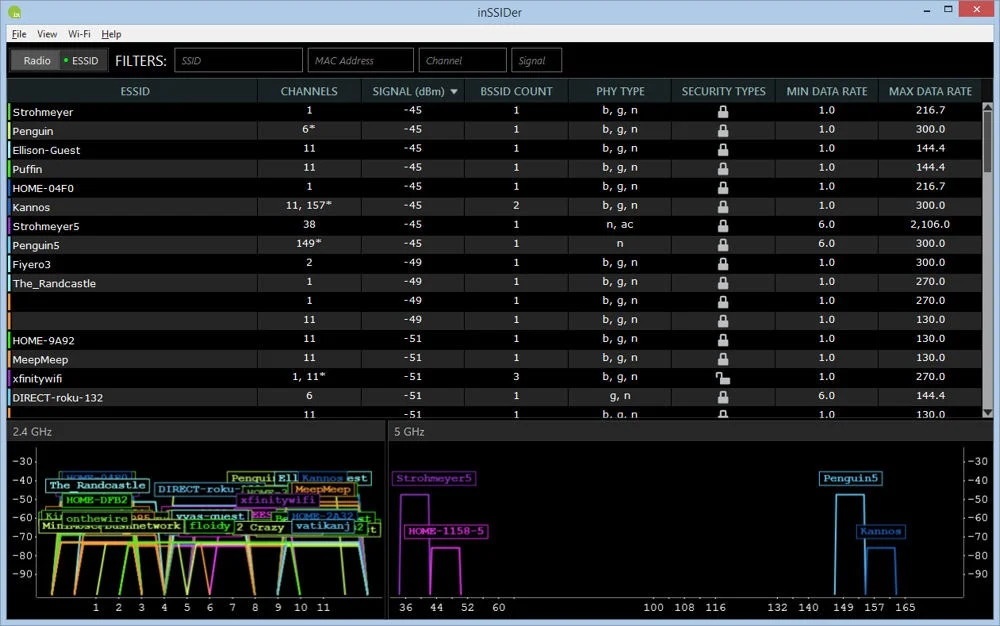
inSSIDer provides channel information and visual graphs that help users identify crowded channels. You can then review your router’s channel settings and choose a more suitable option where supported.
4. Network Security Information
The software displays available security information about detected wireless networks.
This can help network administrators review the security configuration of nearby access points. However, detecting a network does not mean that inSSIDer can access its private data or bypass its password.
5. MAC Address and Access Point Details
inSSIDer can display information such as BSSID, which identifies a wireless access point or radio interface.
It may also display vendor information when the address can be matched against its vendor database. These details are useful when several access points have similar network names.
6. Real-Time Network Graphs
The interface includes visual graphs that help users compare wireless signal levels and channel activity.
These graphs make it easier to spot possible interference and understand how nearby networks occupy the available wireless spectrum.
7. Wireless Network Troubleshooting
inSSIDer can help investigate common Wi-Fi problems, including:
- Weak wireless signals.
- Overlapping Wi-Fi channels.
- Crowded wireless environments.
- Poor router placement.
- Changes in signal strength.
- Nearby access point interference.
It is a diagnostic tool, not a router repair or network security application.
8. Support for Modern Wi-Fi Standards
According to the official release notes for inSSIDer 5.6.1, the software added support for 6 GHz channels, Wi-Fi 6E, and 802.11be (Wi-Fi 7).
The release also added support for WPA3, Protected Management Frames (PMF), and Enhanced Open networks. These improvements help the software identify newer wireless technologies and security configurations.
How Does inSSIDer Help Improve Wi-Fi?
A wireless connection can become unreliable when the signal is weak or nearby networks use crowded channels.
inSSIDer helps users investigate these conditions by displaying network information and signal graphs.
For example, you can scan your home network from different rooms and compare the signal levels. If one room receives a much weaker signal, you may need to reposition the router or consider an additional access point.
Similarly, channel information can help you identify congestion. You can then review the available settings on your router and select a suitable channel.
Keep in mind that actual Wi-Fi performance also depends on router hardware, internet service, distance, walls, interference, and connected devices.
inSSIDer 5.6.1: Version Information
The official inSSIDer 5 release notes list version 5.6.1, released on January 15, 2026.
This release introduced several improvements:
- Full support for 6 GHz channels and Wi-Fi 7.
- WPA3 and Enhanced Open network support.
- Protected Management Frames support.
- Native 64-bit application support.
- Improved Windows 11 compatibility for updated Realtek drivers.
- Better access point grouping.
- Improved wireless utilization information.
- Fixes for reported crashes and memory leaks.
- Improvements to exported PCAP file formatting.
The version number 5.6.1.2 used in the original post does not exactly match the official release-history entry, which lists 5.6.1. Check the installed application’s About section before publishing a more specific build number.
inSSIDer System Requirements
The official software archive lists inSSIDer 5 for the following Windows versions:
| Component | Official information |
|---|---|
| Windows | Windows 7, Windows 8, Windows 10, Windows 11 |
| Application architecture | Native 64-bit in version 5.6.1 |
| Network hardware | Compatible wireless adapter |
| Account | Oscium account required |
| Internet | Needed for account access and online services |
The official release information does not confirm the original article’s claims about 2 GB RAM, .NET Framework 4.5, or a particular screen resolution as minimum requirements.
Therefore, check the official installer and support documentation for any additional hardware or driver requirements.
How to Download and Install inSSIDer
inSSIDer 5 is available through the official MetaGeek/Oscium download service. The free version requires an Oscium account.
Follow these steps:
- Visit the official inSSIDer download page.
- Review the available version and Windows compatibility.
- Create an Oscium account or sign in to your existing account.
- Download the official installer.
- Open the downloaded setup file.
- Follow the installation instructions.
- Launch inSSIDer and sign in when requested.
- Allow the software to scan nearby wireless networks.
- Review the signal strength and channel information.
Do not disable Windows Defender or replace program files with unofficial activation files. Use the original installer and follow the publisher’s instructions.
Official download information: https://www.metageek.com/inssider/
Advantages and Limitations
Advantages
- Helps detect nearby Wi-Fi networks.
- Displays wireless signal strength.
- Provides useful channel information.
- Shows access point and security details.
- Includes visual network graphs.
- Supports modern Wi-Fi standards in version 5.6.1.
- Useful for home and business network troubleshooting.
Limitations
- Requires a compatible wireless adapter.
- Scan results depend on adapter and driver capabilities.
- It does not automatically repair router or internet problems.
- It cannot block unauthorized devices from a router.
- Some advanced services and packet-capture features require additional subscriptions or supported hardware.
- A wireless scan alone cannot guarantee the best network performance.
Frequently Asked Questions
What is inSSIDer used for?
inSSIDer is used to analyze nearby Wi-Fi networks, monitor signal strength, inspect wireless channels, and troubleshoot wireless connectivity problems.
Is inSSIDer free?
inSSIDer 5 for Windows is listed as free in the official software archive. An Oscium account is required to use it. Some additional services and features may require a paid subscription.
Can inSSIDer show Wi-Fi passwords?
No. inSSIDer displays wireless network information, including available security details. It is not a password recovery or Wi-Fi hacking tool.
Can inSSIDer block unauthorized devices?
No. The software can help identify nearby wireless access points, but it does not directly block devices from your router. Use your router’s administration interface to manage connected devices and access permissions.
Does inSSIDer support Wi-Fi 6E and Wi-Fi 7?
Yes. The official version 5.6.1 release notes confirm support for 6 GHz channels, Wi-Fi 6E, and 802.11be (Wi-Fi 7).
Does inSSIDer work on macOS?
The official archive lists inSSIDer 5 for Windows. It also lists a separate macOS beta release with older compatibility information. Do not assume that the current Windows release is a supported native macOS application.
Is inSSIDer useful for home networks?
Yes. Home users can use it to compare signal strength in different rooms and identify crowded wireless channels. The results can help when deciding where to place a router or which channel settings to review.
Final Verdict
inSSIDer is a useful Wi-Fi analysis tool for users who want more information about their wireless environment. Its signal monitoring, channel graphs, access point details, and modern Wi-Fi support make it valuable for network troubleshooting.
It is particularly useful for identifying weak coverage and possible channel congestion. However, it should be treated as a diagnostic utility rather than a tool for hacking, blocking devices, or automatically repairing a network.
For reliable results, use the official installer and a compatible wireless adapter.



Recent Comments