
IObit Driver Booster 12 Review: Features & Driver Update Guide
IObit Driver Booster 12 Review: Features & Driver Update Guide
Keeping device drivers updated can help a Windows computer work properly. However, finding the correct driver for every hardware component can take time. IObit Driver Booster is a driver management utility designed to simplify this process.
It scans a computer for outdated, missing, or faulty drivers. Users can then review available updates and install selected drivers through its interface. The software also includes backup and recovery tools that can help users deal with problems after an update.
This article focuses on Driver Booster 12, including its features, system requirements, limitations, and installation considerations. Please note that version 12 is an older release, not the latest edition available in 2026.
What Is IObit Driver Booster?
IObit Driver Booster is a Windows utility developed by IObit. Its main purpose is to identify outdated or missing device drivers and help users update them.
Drivers allow Windows to communicate with hardware such as graphics cards, network adapters, sound devices, printers, keyboards, and other peripherals.
Finding updates manually can be difficult, especially when a computer has many different components. Driver Booster brings driver scanning and management into one interface.
The program offers both Free and Pro editions. Some advanced functions, including additional backup and automatic update options, are available in the Pro edition.
Main Features of IObit Driver Booster 12
Driver Booster includes several tools for managing Windows device drivers. The available functions can vary depending on the edition and software version.
1. Automatic Driver Scanning
Driver Booster scans the computer to identify outdated, missing, and faulty drivers. It displays the scan results so users can review which components may need attention.
This saves time compared with checking every hardware device individually.
2. Large Driver Database
IObit provides an online database containing drivers for many hardware devices. Driver Booster 12 was introduced with support for more than 15 million device drivers and game components.
The database helps users locate updates for supported graphics, audio, network, motherboard, and peripheral devices.
However, the availability of a driver depends on the specific hardware and Windows configuration.
3. One-Click Driver Updates
The software provides an option to update selected drivers through its interface. Users can review scan results and update individual entries or several selected drivers.
Although bulk updates are convenient, installing every available update without reviewing it is not always the best approach. Update important hardware drivers carefully.
4. Driver Backup and Restore
Driver updates can occasionally create compatibility problems. For this reason, backup and recovery tools are useful.
Driver Booster Pro includes driver backup and restore options. Users can save supported driver versions and restore them if a later update causes problems.
It can also work with Windows System Restore points, depending on the settings and configuration.
5. Driver Rollback
If a newly installed driver causes problems, rolling back to a previous version may help.
Driver Booster provides rollback options for supported drivers. However, rollback availability depends on whether a previous version is available.
6. Game Boost
The Game Boost feature is designed to reduce selected background activity while gaming.
It can stop selected applications or services to free up system resources. Users should review the items being stopped before enabling this feature.
Game Boost does not replace a graphics card upgrade or guarantee higher frame rates in every game.
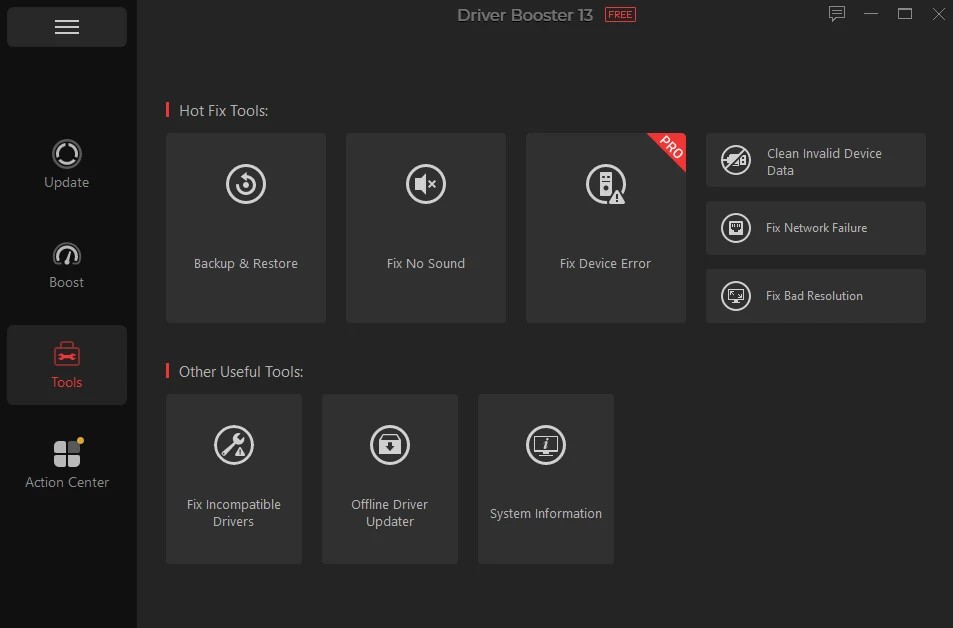
7. Tools for Common Driver Problems
Driver Booster includes tools intended to help troubleshoot common hardware issues.
Depending on the version, these may include options for:
- Fixing sound-related problems
- Troubleshooting device errors
- Addressing network connection failures
- Fixing display resolution problems
- Cleaning invalid device data
- Checking system and hardware information
- Managing driver backups and restoration
These tools can help with basic troubleshooting, but they cannot fix every hardware or Windows problem.
8. Offline Driver Updating
Driver Booster offers an offline driver updater feature for certain situations. This can be useful when a computer has no working internet connection.
Users may need another computer with internet access to obtain the required driver packages.
What’s New in Driver Booster 12?
IObit announced Driver Booster 12 in September 2024. Its published improvements included:
- An expanded database covering more than 15 million drivers and game components.
- Support for newer hardware, including selected Intel Core Ultra and AMD Ryzen processors.
- Improved driver scanning speed.
- Improvements to the driver installation process.
- Updated Game Boost functionality.
- A redesigned user interface.
- Support for 38 languages.
These are improvements announced for the Driver Booster 12 release. They should not be confused with features introduced in later editions.
Is IObit Driver Booster Pro Good for Laptops?
Driver Booster can be useful for laptop users who want a convenient way to review driver updates. It can identify outdated drivers for supported hardware and provide an interface for managing updates.
However, there are some important considerations.
Ease of Use
The interface is designed to make driver scanning and updating straightforward. Users can review available updates without searching for every device manually.
Automated Updates
Automatic updates can save time. However, an incorrect or incompatible driver may cause problems. Review important updates before installing them.
Backup and Recovery
The backup and restore features can help users recover from certain driver-related problems. It is still sensible to create a Windows restore point before major driver changes.
Laptop Manufacturer Drivers
Laptop manufacturers sometimes provide customized drivers for specific models. These may include power management, graphics switching, touchpad, and wireless features.
For this reason, check the laptop manufacturer’s support website when dealing with important hardware problems.
IObit Driver Booster 12 System Requirements
IObit’s Driver Booster user manual lists the following supported operating systems and basic requirements:
| Component | Requirement |
|---|---|
| Operating system | Windows 11, 10, 8.1, 8, or 7 |
| Architecture | x86, x64, and ARM64 |
| Free disk space | 1 GB |
| Display resolution | 1024 × 768 or higher |
| Internet connection | Required for online driver downloads |
The 1 GB storage recommendation mainly covers downloaded driver packages and installation files. Actual storage use depends on the drivers being downloaded.
These are the requirements listed in the current user manual, so they should not be treated as a separate certification for every older Driver Booster 12 build.
How to Install IObit Driver Booster Safely
Use the publisher’s official installer rather than modified packages or unknown archives.
- Visit the official IObit Driver Booster website.
- Check the available version and system compatibility.
- Download the installer from the official source.
- Open the downloaded setup file.
- Review the installation options and any additional offers.
- Follow the on-screen setup instructions.
- Open Driver Booster after installation.
- Run a driver scan and review the results.
- Create a restore point before installing important driver updates.
- Update only the drivers you need and restart Windows if requested.
A genuine Pro licence should be purchased or obtained through an authorized IObit channel. Avoid keygens, unauthorized activation codes, and modified installers.
Important Safety Tips Before Updating Drivers
Driver updates can affect how hardware works. Follow these precautions before making changes:
- Create a Windows restore point.
- Back up important files.
- Check the device model before installing a driver.
- Prefer drivers from the computer or hardware manufacturer’s website for critical components.
- Avoid updating every driver simply because an update is available.
- If a problem begins after an update, consider rolling back the affected driver.
Windows Update and Device Manager are also useful options for driver maintenance. Microsoft recommends Windows Update for many standard driver updates.
Frequently Asked Questions
Is IObit Driver Booster 12 still the latest version?
No. Driver Booster 12 is an older release. IObit announced Driver Booster 14 in September 2026, making version 12 an earlier edition.
Does Driver Booster support Windows 11?
IObit’s current user manual lists Windows 11 support. However, compatibility with an older build should be checked separately.
Is Driver Booster available for Mac?
Driver Booster is a Windows utility. It should not be described as a native macOS application.
Can Driver Booster update graphics drivers?
It can identify and offer supported graphics driver updates. Users should still check NVIDIA, AMD, Intel, or their computer manufacturer’s website for important graphics driver releases.
Is Driver Booster Free different from Pro?
Yes. The Free and Pro editions have different features. Pro provides additional functions, such as driver backup and other automated driver management options.
Can a driver update cause computer problems?
Yes. An incompatible driver can cause hardware malfunctions, crashes, or other stability problems. Creating a restore point and backing up drivers can make recovery easier.
Should I update all outdated drivers?
Not necessarily. If a device works correctly, an update may not provide a noticeable benefit. Focus on drivers that fix a known problem or provide a required hardware feature.
Can I update drivers without Driver Booster?
Yes. Windows Update and Device Manager can help users find and install many driver updates. You can also download drivers directly from the hardware manufacturer’s official website.
Final Verdict
IObit Driver Booster 12 provides a convenient interface for scanning, updating, backing up, and managing Windows device drivers. Its driver database, rollback options, and troubleshooting tools can make routine driver maintenance easier.
However, automatic driver updates should be used carefully. A newer driver is not always the best choice for every computer, especially when a manufacturer provides a customized version.
For users who prefer manual control, Windows Update and official hardware support websites remain reliable alternatives. Always review driver details and create a restore point before making significant changes.


Recent Comments