
Luminar 4.5.6 Review: AI Photo Editing Features & System Requirements
Luminar 4.5.6 Review: AI Photo Editing Features & System Requirements
Luminar 4 is a photo-editing application developed by Skylum. It combines traditional image adjustments with AI-assisted tools that help photographers improve landscapes, portraits, and everyday photographs. Instead of relying entirely on manual selections and complicated editing steps, users can apply intelligent adjustments and then fine-tune the results.
This guide focuses on Luminar 4.5.6 as a legacy version. It explains the software’s main tools, editing workflow, compatibility considerations, and the newer Luminar application available from Skylum.
What Is Luminar 4?
Luminar 4 is a desktop photo editor for Windows and macOS. It was designed for photographers who want creative editing tools without building every adjustment from scratch.
The application includes image enhancement, color correction, portrait retouching, sky replacement, layers, and photo organization features. Its AI tools can analyze parts of an image and help apply targeted edits.
Luminar 4 can be useful for hobby photographers, travel creators, portrait photographers, and people who want to improve their personal photo collections. However, it is an older product, so users should check compatibility and licensing before relying on it for a new workflow.
Main Features of Luminar 4
1. AI Sky Replacement
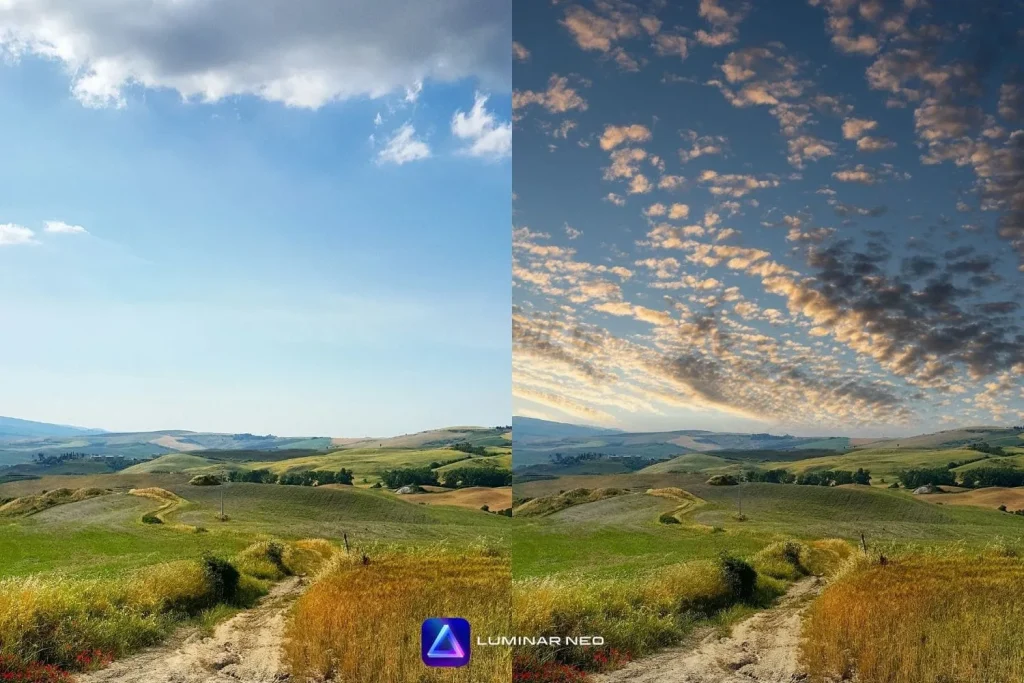
AI Sky Replacement is one of Luminar 4’s best-known features. It detects the sky in a photograph and allows users to replace it with another sky image.
The tool is useful when an outdoor photograph has a dull or overexposed sky. Users can choose a suitable replacement and adjust the result to create a more balanced image. The quality depends on the original photograph, horizon, lighting, and selected sky.
2. AI Structure
AI Structure enhances details and textures in photographs. It can make landscapes, buildings, and other textured subjects appear clearer.
Unlike a simple sharpening filter, an intelligent structure adjustment aims to enhance important details without applying the same effect equally to every part of the image. Results should still be checked at full size to avoid an overly processed appearance.
3. AI Skin Enhancer
Portrait photographers can use AI Skin Enhancer to reduce visible skin imperfections and create a smoother appearance. It is designed to simplify common portrait-retouching tasks.
For natural results, use moderate adjustments. Excessive smoothing can remove skin texture and make a portrait look artificial.
4. AI Portrait Enhancer
Luminar 4 includes portrait-focused adjustments for improving facial appearance and lighting. These tools can help users refine portraits without manually selecting every facial area.
The final result depends on the original image, lighting, resolution, and the amount of adjustment applied.
5. Accent AI
Accent AI provides an automatic enhancement option for improving the overall appearance of a photograph. It can adjust several image characteristics, including contrast, exposure, color, and tonal balance.
It is useful as a starting point, but it should not replace careful editing. After applying an automatic adjustment, review highlights, shadows, and skin tones.
6. Non-Destructive Editing
A non-destructive workflow allows users to make adjustments without directly overwriting the original photograph. This makes it easier to experiment with different editing styles and return to an earlier result.
Keep backup copies of important photographs and project files, especially when working with older software.
7. Layers and Creative Effects
Luminar 4 supports layers and creative editing techniques. Users can combine visual elements, apply effects, and build more complex compositions.
These options are helpful for creative photography, promotional images, social media graphics, and artistic projects.
8. Photo Organization and Presets
Luminar 4 includes catalog-based photo organization and preset-style looks. Presets provide a quick way to apply a particular visual style to an image.
Users can also adjust the settings after applying a preset. This flexibility helps create a consistent look across a collection of photographs.
What Can You Use Luminar 4 For?
Luminar 4 can support several common photography tasks:
- Improving landscape and travel photographs.
- Replacing skies in suitable outdoor images.
- Enhancing portraits and reducing minor skin imperfections.
- Adjusting exposure, contrast, color, and image details.
- Applying creative looks through presets.
- Combining images and effects with layers.
- Organizing photographs in a desktop editing workflow.
It is primarily a photo editor, not a full replacement for every professional image-management or graphic-design application.
Luminar 4.5.6: Version Information
Luminar 4.5.6 is an older version number and should not be described as the latest Luminar release in 2026. Skylum has introduced newer generations of its photo-editing software since Luminar 4.
The current desktop product has a separate version history and feature set. For example, Skylum’s official desktop changelog lists Luminar 1.29.0, released on October 28, 2026. That release includes updates to exporting, printing, composition, atmosphere effects, and AI editing tools.
If you specifically need Luminar 4.5.6 for an older project, check that your installer and license are legitimate and that the application works with your operating system. For a new installation, compare the current Luminar product with your computer’s specifications and editing requirements.
System Requirements
The following requirements are based on Skylum’s published technical information for Luminar 4. They are not a guarantee that every older computer will deliver smooth performance.
Windows
- Operating system: Windows 7 or later, 64-bit.
- Processor: Intel or AMD processor with at least two cores.
- Memory: 8 GB RAM minimum; 16 GB or more recommended.
- Graphics: OpenGL 3.3-compatible graphics.
- Storage: At least 10 GB of free disk space.
- Display: 1280 × 768 minimum resolution.
macOS
Luminar 4 was also released for macOS. Compatibility depends on the Mac model and operating-system version. Check Skylum’s product documentation and support information before installing it on a newer macOS release.
For better performance, use an SSD, keep enough free storage for image files, and close unnecessary applications while editing large photographs.
How to Install Luminar Through an Official Source
For a secure installation, use an installer provided by Skylum or another authorized source.
- Visit the official Skylum website.
- Review the available Luminar product and its system requirements.
- Choose the appropriate version and license for your computer.
- Download the installer from your Skylum account or the authorized purchase source.
- Open the installer and follow the on-screen instructions.
- Sign in or complete the license activation process using your valid account or license details.
- Launch the application and import a photograph to begin editing.
Avoid unofficial activation tools, modified installers, and unknown license-code websites. They may expose your computer to unwanted software and can create licensing or update problems.
Luminar 4 vs. Newer Luminar Software
Luminar 4 remains recognizable for its AI Sky Replacement and portrait-editing workflow. However, newer Luminar releases have expanded the available tools and continue to receive product updates.
Skylum’s current desktop changelog lists newer features such as enhanced cropping suggestions, atmosphere effects, printing options, improved export controls, and generative editing tools. These capabilities are not all part of Luminar 4.5.6.
If you are choosing software today, compare the current Luminar product with your needs rather than assuming an older Luminar 4 installer includes newer features.
Pros and Limitations
Advantages
- AI-assisted tools simplify several common editing tasks.
- Sky Replacement can help improve suitable landscape photographs.
- Portrait tools provide quick retouching options.
- Presets offer a convenient starting point for editing.
- Non-destructive editing supports experimentation.
- Layers allow more creative image compositions.
Limitations
- Luminar 4 is an older product generation.
- Compatibility with newer operating systems may vary.
- Automatic edits can sometimes produce unnatural results.
- Large RAW files and complex projects need adequate hardware.
- Newer features from current Luminar releases are not included in Luminar 4.5.6.
Frequently Asked Questions
Is Luminar 4.5.6 the latest version in 2026?
No. Luminar 4.5.6 is an older release. Skylum has introduced newer Luminar software and continues to publish updates for its current desktop application.
Does Luminar 4 support Windows?
Yes. Luminar 4 was released for Windows, with published requirements specifying a 64-bit Windows operating system. Check the exact requirements before installing it.
Can Luminar 4 replace Adobe Lightroom?
It can handle many photo-editing tasks, but the applications have different workflows and capabilities. Your choice depends on catalog management, editing preferences, file handling, and the tools you need.
Can I replace a sky with Luminar 4?
Yes. AI Sky Replacement is one of Luminar 4’s main features. It detects the sky and helps blend a replacement into a suitable photograph.
Is Luminar 4 suitable for beginners?
Yes. Presets and AI-assisted adjustments can make common editing tasks easier to learn. Beginners should still review the results and make manual corrections when necessary.
Where should I get Luminar?
Use Skylum’s official website or an authorized source to check available products, installers, licensing, and compatibility information.
Final Verdict
Luminar 4.5.6 is a legacy photo-editing release known for AI Sky Replacement, portrait enhancement, AI Structure, presets, and non-destructive editing. It can still be relevant to users maintaining older projects, provided their computer and license are compatible.
For a new photography workflow in 2026, compare it with Skylum’s current Luminar desktop software. Always use an authorized installer and a valid license to avoid security and activation problems.
Official resources:
- Skylum Luminar: https://skylum.com/luminar
- Luminar desktop changelog: https://skylum.com/whats-new/luminar-neo
- Skylum support: https://support.skylum.com/


Recent Comments