
Turbo Studio Review: Application Virtualization, Features & Requirements
Turbo Studio Review: Application Virtualization, Features & Requirements
Turbo Studio is a Windows application virtualization tool developed by Turbo.net. It helps developers and IT teams package Windows applications into virtual environments. These packages can run with their required files, settings, and dependencies without following a traditional installation process on every target computer.
The software provides tools for capturing application installations, configuring virtual files and registry settings, adding dependencies, and building deployable packages. As a result, organizations can simplify application delivery and reduce conflicts between applications.
Turbo Studio supports different output formats, including standalone executable files and Turbo images. Teams can also use its integration with Turbo Server and Turbo Hub to manage application deployment.
This guide explains how Turbo Studio works, its main features, supported platforms, licensing considerations, and installation process.
What Is Turbo Studio?
Turbo Studio is an application packaging and virtualization program for Windows.
Traditional Windows applications often depend on files, registry entries, system settings, and runtime components. When users install several applications on the same computer, these components can sometimes conflict.
Turbo Studio helps developers package an application and its required components inside a virtual environment. This approach can reduce the need to change the host operating system during deployment.
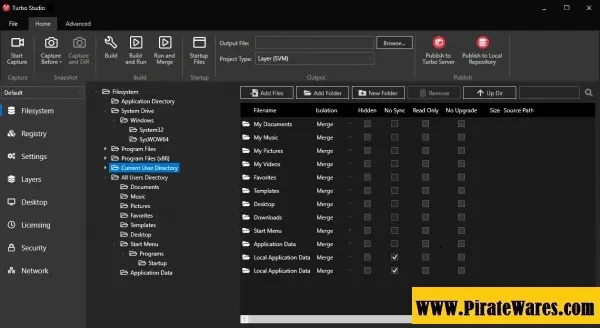
Users can configure the virtual filesystem, registry, application settings, and other components through its graphical interface. They can then build the package in a format that suits their deployment environment.
How Does Turbo Studio Work?
Turbo Studio uses application virtualization to create a controlled environment for a Windows program.
Instead of relying entirely on the target computer’s existing configuration, the virtualized application can use files, registry settings, and dependencies included in its package.
The basic workflow includes these stages:
- Capture: Record the changes made when an application installs or runs.
- Configure: Review the captured files, registry entries, and application settings.
- Customize: Add required runtimes, dependencies, and virtual environment settings.
- Build: Create the selected virtual application output.
- Deploy: Distribute the package through a supported deployment method.
Turbo Studio supports setup capture, system snapshots, and clean-environment installation workflows. These options help developers create application configurations for different deployment needs.

Key Features of Turbo Studio
1. Application Virtualization
Turbo Studio packages Windows applications inside virtual environments.
This approach can help applications run with their required components while reducing conflicts with other programs on the host computer.
Developers can configure how the virtual application accesses files, registry entries, and other system resources.
2. Virtual Filesystem
The virtual filesystem lets developers organize the files and folders that an application needs.
They can add, remove, and configure virtual files through the Studio interface. The application can then access these files within its container according to the selected isolation settings.
This feature is useful when an application depends on specific files or directory structures.
3. Virtual Registry
Many Windows applications rely on registry entries for configuration and operation.
Turbo Studio provides a virtual registry editor that lets developers manage registry keys and values inside an application container.
This can help package applications that require particular registry settings without making the same changes directly to every target computer.
4. Setup Capture
Setup Capture records changes that occur during an application’s installation.
The tool can capture relevant filesystem and registry changes and use them to build a virtual application configuration.
This workflow is useful when developers need to package an existing Windows application. However, they should review the captured configuration before building the final output.
5. Snapshot-Based Packaging
Turbo Studio can compare system states before and after an application installation.
It uses the observed changes to help create the virtual application configuration.
This method can simplify packaging when an application does not have a ready-made configuration. A clean test environment can also help reduce unrelated changes in the captured results.
6. Runtime and Dependency Support
Some applications require additional components, such as .NET, Java, or database runtimes.
Turbo Studio can package supported runtime dependencies with a virtual application. This can reduce the need to install every dependency separately on the target computer.
However, developers must still check the licensing terms of third-party components before including them in a package.
7. 32-bit and 64-bit Application Support
Turbo Studio supports both 32-bit and 64-bit Windows applications on compatible 64-bit platforms.
This gives developers flexibility when packaging applications built for different Windows architectures.
The software does not support virtualization of 16-bit executables. Users who need to run older DOS programs may need to package a suitable emulator instead.
8. Virtual Services and DCOM
Some business applications depend on background services or Distributed Component Object Model (DCOM) components.
Turbo Studio can configure services within a virtualized Service Control Manager. Its documentation also describes support for services such as SQL Server, MySQL, IIS, and Nginx.
The software can capture services during supported application snapshot and container build operations. This makes it useful for more complex application environments.
9. Standalone Executable and Turbo Image Output
Turbo Studio supports different output types.
Developers can create standalone executable packages or Turbo images for use with compatible Turbo tools and services.
A standalone executable can reduce the need for a separate Turbo Client runtime. However, this output type requires an Enterprise or ISV license according to the official documentation.
Turbo images can also work with Turbo Client, Turbo Server, and supported Turbo deployment environments.
10. Graphical Configuration Editor
Turbo Studio includes a graphical interface for creating and editing virtual application configurations.
Users can manage files, registry settings, startup options, dependencies, layers, and other application settings.
The interface can help developers review a package before building it. It also provides tools for troubleshooting and configuration management.
How Does Turbo Studio Improve Application Deployment?
Application deployment can become difficult when programs depend on different runtimes, registry entries, or system components.
Turbo Studio helps address these challenges by packaging application components into a virtual environment.
Some practical benefits include:
- Simplified distribution: Package application components together for supported deployment methods.
- Reduced conflicts: Isolate selected files and registry settings from other applications.
- Portability: Run compatible virtual applications on supported Windows environments.
- Dependency management: Include supported runtimes and components with an application.
- Legacy application support: Package certain older Windows applications with their required dependencies.
- Centralized deployment: Use Turbo Server or Turbo Hub integrations for supported organizational workflows.
- Testing: Build and test application configurations in controlled environments.
These benefits depend on the application, its dependencies, the chosen isolation settings, and the target Windows environment.
Does Turbo Studio Improve Security?
Application virtualization can help separate selected application resources from the host system. For example, developers can configure virtual filesystem and registry settings to reduce unwanted changes to the host.
However, virtualization does not automatically make an application safe. It also does not replace antivirus software, endpoint protection, access controls, or security testing.
Before distributing a virtual application, developers should:
- Review the original application installer.
- Check all included dependencies.
- Remove unnecessary files and components.
- Test the package with security software enabled.
- Review network and filesystem permissions.
- Follow the licensing terms of the packaged software.
A properly configured virtual environment can improve application control, but it should not be treated as a complete security boundary.
Turbo Studio System Requirements
Turbo Studio is a Windows desktop application. The official documentation states that it runs on Windows Vista and later and supports compatible 32-bit and 64-bit applications.
The exact hardware requirements depend on the applications being packaged and the size of the project. Turbo.net does not list the 1 GB RAM and 50 MB disk requirements shown in some older third-party descriptions as universal current requirements.
| Component | Information |
|---|---|
| Operating System | Windows Vista or later, according to the Studio documentation |
| Application Support | 32-bit and 64-bit Windows applications |
| 64-bit Platform | Supports compatible 32-bit and 64-bit applications |
| 16-bit Applications | Not supported for direct virtualization |
| Storage | Depends on the installer, project files, and output packages |
| RAM | Depends on the host system and applications being packaged |
For a production setup, check the current installer documentation and the requirements of the applications you plan to virtualize.
Turbo Studio Licensing
Turbo Studio licensing depends on the intended use and output type.
The official documentation states that standalone executable output requires an Enterprise or ISV license. Other workflows may have different licensing conditions.
Turbo.net has also documented a personal, non-commercial use option in an earlier release. However, users should not assume that every current feature or deployment method is available under the same terms.
Before using Turbo Studio for business or commercial distribution, review the current license terms and confirm that your account supports the required output format.
How to Download and Install Turbo Studio
Use the official Turbo.net download page to obtain the installer.
Follow these steps:
- Visit the official Turbo.net download page.
- Find Turbo Studio in the available downloads.
- Check the listed version and release information.
- Download the official Windows MSI installer.
- Open the downloaded installer.
- Follow the setup instructions.
- Launch Turbo Studio after installation.
- Sign in with your Turbo.net account or configure the license certificate when required.
- Open an existing configuration or start a new application packaging project.
- Review the official documentation before building or distributing a package.
Keep Windows Defender and other security tools enabled during installation. Avoid modified installers, unofficial license files, and unauthorized activation tools.
What’s New in Turbo Studio 25.1.5?
Turbo Studio 25.1.5 was released on January 28, 2025.
According to the official release notes, this version included the following changes:
- Updated the Turbo VM to version 25.1.11.
- Fixed an issue involving registration-free COM objects exposed in strongly named assemblies.
- Fixed initialization of delay-loaded static dependencies.
These changes focused on compatibility and reliability. They did not introduce a new application virtualization platform.
Is Turbo Studio 25.1.5 the Latest Version?
No. Turbo Studio 25.1.5 is an older release.
The official download page lists Turbo Studio 26.4.4 as the latest version, dated April 16, 2026. Users planning a new installation should check the official download page for the current release.
Turbo Studio Alternatives
Users who want to compare application packaging and virtualization tools can explore other products.
VMware ThinApp
VMware ThinApp is an application virtualization solution designed to package Windows applications into virtualized packages. It is commonly associated with enterprise application delivery.
Cameyo
Cameyo provides application virtualization and application delivery options. Its approach can suit organizations that want to deliver applications through supported desktop or browser-based environments.
Microsoft MSIX
MSIX is Microsoft’s modern Windows application packaging format. It supports application installation and deployment workflows, although it does not offer the same virtualization approach as Turbo Studio.
Each product has different capabilities, licensing conditions, and deployment requirements. Choose a solution based on your application, Windows environment, and distribution needs.
Frequently Asked Questions
What is Turbo Studio used for?
Turbo Studio is used to package Windows applications into virtual environments. It helps developers configure application files, registry settings, dependencies, and deployment outputs.
Is Turbo Studio a virtual machine?
No. Turbo Studio is an application virtualization and packaging tool. It creates virtualized application packages rather than functioning as a traditional full operating system virtual machine.
Does Turbo Studio support Windows 11?
Turbo Studio supports modern Windows environments, and its official documentation describes Windows compatibility. Check the current release documentation for any version-specific requirements.
Does Turbo Studio support Mac?
Turbo Studio itself is a Windows desktop application. It is not a native macOS version. Turbo.net offers other services for accessing Windows applications from different devices, but those services are separate from the Studio desktop application.
Can Turbo Studio package 32-bit applications?
Yes. Turbo Studio supports compatible 32-bit and 64-bit Windows applications on supported platforms.
Can Turbo Studio virtualize 16-bit applications?
No. The official documentation states that Turbo Studio does not directly support virtualization of 16-bit executables. An appropriate emulator may be needed for older DOS applications.
What is a Turbo image?
A Turbo image is a virtual application package that can work with supported Turbo tools and deployment services. Developers can use it with Turbo Client or Turbo Server, depending on their setup.
Can Turbo Studio create standalone EXE files?
Yes. Turbo Studio can create standalone executable output. However, the official documentation states that this output type requires an Enterprise or ISV license.
Is Turbo Studio free?
Licensing depends on the intended use and output type. Turbo.net has documented personal, non-commercial use in an earlier release, but users should check the current license terms before using the software.
What is the difference between Turbo Studio and Turbo Server?
Turbo Studio is the authoring tool used to create virtual application packages. Turbo Server provides deployment and management capabilities for supported organizational environments.
Final Thoughts
Turbo Studio is a useful application virtualization tool for developers and IT teams that need to package Windows applications with their required files, settings, and dependencies.
Its setup capture, virtual filesystem, registry editor, runtime support, and multiple output options make it suitable for different application deployment workflows.
However, successful packaging requires testing and careful configuration. Users should also review current licensing terms, check application compatibility, and download the installer from the official Turbo.net website.



Recent Comments