
Pepakura Designer 6.1.2 Review: Features & Papercraft Guide
Pepakura Designer 6.1.2 Review: Features & Papercraft Guide
Pepakura Designer is a Windows application developed by Tama Software. It transforms three-dimensional (3D) computer models into two-dimensional (2D) patterns that users can print, cut, fold, and assemble into paper models.
The software is useful for papercraft enthusiasts, cosplay creators, hobbyists, educators, and designers who want to turn digital models into physical projects. Instead of manually calculating every paper section, users can import a supported 3D model and generate an unfolded pattern.
This article covers Pepakura Designer 6.1.2, its main features, supported 3D formats, export options, and installation process.
What Is Pepakura Designer?
Pepakura Designer is a specialized application for converting existing 3D models into printable papercraft templates. It does not create original 3D models itself. Instead, users create their models in compatible 3D software and import them into Pepakura Designer for unfolding and layout editing.
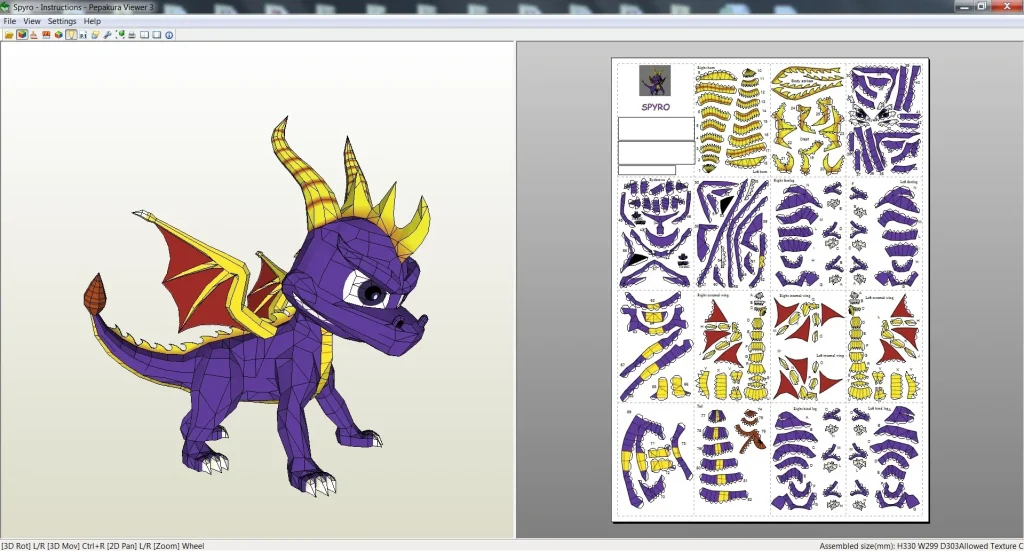
After importing a model, the application displays it in a 3D view. Users can then unfold its surfaces into a 2D pattern and arrange the resulting pieces across printable pages.
Each section can include useful details such as fold lines, cutting edges, connection tabs, and part labels. These details make the final paper assembly easier to understand.
Main Features of Pepakura Designer
1. Convert 3D Models into 2D Patterns
The main purpose of Pepakura Designer is to unfold 3D models into flat patterns.
Users can import a compatible model and generate a printable layout. The application calculates how its connected surfaces can be arranged on paper while maintaining the relationships between individual parts.
This feature is particularly useful for creating paper models of buildings, vehicles, characters, helmets, and decorative objects.
2. Separate 3D and 2D Views
Pepakura Designer provides a 3D model view and a 2D unfolded-pattern view.
The 3D view helps users inspect the original model from different angles. Meanwhile, the 2D view displays the unfolded sections that will eventually be printed and assembled.
This arrangement makes it easier to understand how individual paper pieces correspond to the original 3D object.
3. Edit Unfolded Patterns
After generating a pattern, users can adjust its layout to make printing and assembly more convenient.
Depending on the project, they can:
- Move individual pattern pieces.
- Rotate selected sections.
- Rearrange parts across pages.
- Adjust the layout and paper settings.
- Review fold lines and connection edges.
- Organize parts for easier assembly.
These editing options provide greater control over the final papercraft template.
4. Customize Paper Templates
Different projects require different paper sizes and layouts. Pepakura Designer provides settings for adjusting the unfolded pattern to suit the intended printing format.
Users can arrange parts, manage page boundaries, and adjust the pattern scale. This helps them prepare templates for different project sizes.
Before printing, always review the page layout and scale to ensure the pieces fit the available paper.
5. Support for Multiple 3D File Formats
Pepakura Designer can import several popular 3D model formats.
Officially supported formats include:
- Metasequoia (.mqo)
- Wavefront OBJ (.obj)
- 3D Studio (.3ds)
- LightWave (.lwo)
- AutoCAD DXF (.dxf)
- Binary STL (.stl)
- Google Earth KMZ and KML
- Hexa Great (.6kt and .6ks)
Metasequoia and OBJ are particularly useful options. If a model does not import correctly, converting it to OBJ may help resolve compatibility issues.
6. Text and Image Elements
Users can add text and images to the 2D layout for additional project information and visual customization.
Labels can help identify individual pieces, while images and other layout elements can make a template easier to understand.
These options are useful when preparing detailed instructions or organizing complex papercraft projects.
7. Export and Printing Options
Pepakura Designer supports exporting unfolded patterns for use in other applications.
Supported output options include vector formats such as EMF, DXF, and EPS. The software also provides additional export options, including SVG and PDF in supported versions.
Users can print their patterns directly or export them for further editing in compatible design applications.
What’s New in Pepakura Designer 6.1.2?
Pepakura Designer 6.1.2 was officially released on October 2, 2025.
According to Tama Software’s release notes, this update included two important export improvements:
- Improved SVG export settings: Exported SVG files can be imported into Cricut Design Space at the correct scale.
- EPS text support: Text objects are now included in exported EPS files.
These changes improve compatibility with external design and cutting workflows.
Version information: Pepakura Designer 6.1.2 is not the latest release. Tama Software’s release history lists version 6.3.9, released on November 2, 2026.
Pepakura Designer System Requirements
Pepakura Designer’s official download and FAQ pages do not provide a complete, current minimum hardware specification for version 6.1.2.
Therefore, the older requirements sometimes repeated online, such as Windows XP, 512 MB RAM, and 100 MB storage, should not be treated as verified requirements for this release.
Before installing the application, check the current installer information and ensure that your Windows computer has sufficient available storage and memory.
Operating System Compatibility
- Pepakura Designer 6 is available for Windows.
- There is no official macOS version.
- Linux is not listed as a supported native platform.
Mac users should not download the Windows installer expecting it to work as a native Mac application.
How to Install Pepakura Designer
Follow these steps to install the official application:
- Visit the official Tama Software Pepakura Designer download page.
- Select the Windows installer download option.
- Save the installation file to your computer.
- Open the downloaded installer.
- Follow the setup wizard instructions.
- Complete the installation.
- Launch Pepakura Designer.
- Import a supported 3D model to begin creating your first paper pattern.
The software can be downloaded and used before purchasing a license. However, saving and exporting patterns are restricted until you purchase and activate a license.
Avoid unofficial key generators, modified installers, and activation replacement files. They can introduce security risks and may violate the software’s licensing terms.
Frequently Asked Questions
Is Pepakura Designer free?
You can download and use Pepakura Designer without purchasing a license. However, the free version restricts saving and exporting. Purchasing a license unlocks these functions.
Is Pepakura Designer available for Mac?
No. Tama Software officially provides Pepakura Designer for Windows only. Its FAQ specifically confirms that there is no Mac version.
Can Pepakura Designer create 3D models?
No. Its main purpose is to unfold existing 3D models into papercraft patterns. You must create the original 3D model using another compatible application.
Which file formats does Pepakura Designer support?
It supports several formats, including OBJ, 3DS, STL, DXF, LWO, and Metasequoia MQO, along with other formats listed in the official documentation.
What is the difference between Pepakura Designer and Pepakura Viewer?
Pepakura Designer is used to create and edit unfolded patterns from 3D models. Pepakura Viewer is intended for viewing compatible papercraft files rather than creating complete designs.
Does Pepakura Designer 6.1.2 support SVG export?
Yes. Version 6.1.2 improved SVG export settings so files can be imported into Cricut Design Space at the correct scale.
Does the Pepakura Designer license expire?
According to Tama Software’s FAQ, a Pepakura Designer 6 license key does not have an expiration date and remains valid for minor updates within the 6.x version series.
What is the latest version of Pepakura Designer?
The official release history lists version 6.3.9, released on November 2, 2026. Version 6.1.2 is an older release from October 2025.
Final Verdict
Pepakura Designer is a practical tool for transforming 3D models into printable paper templates. Its automatic unfolding process, separate 3D and 2D views, layout editing tools, and support for popular 3D formats make it useful for papercraft and cosplay projects.
Version 6.1.2 introduced useful improvements to SVG and EPS exports, particularly for users working with external design applications and cutting workflows.
Although the software does not create original 3D models, it provides a focused workflow for turning existing digital designs into physical paper projects. Users who need the latest improvements should also consider downloading the newest official version.


Recent Comments