
MiniTool Power Data Recovery 12.8 Review: Features & Recovery Guide
MiniTool Power Data Recovery 12.8 Review: Features & Recovery Guide
MiniTool Power Data Recovery is a Windows data recovery application designed to help users retrieve deleted, lost, or inaccessible files from different storage devices. It can scan internal hard drives, SSDs, USB flash drives, memory cards, and other supported storage media.
The software provides recovery options for accidental deletion, formatted partitions, lost partitions, and certain drive access problems. Its scanning interface also helps users browse found files, filter results, and preview supported items before restoring them.
This guide focuses on MiniTool Power Data Recovery 12.8, its main features, version history, free edition limitations, system compatibility, and safe recovery practices.
What Is MiniTool Power Data Recovery?
MiniTool Power Data Recovery is a file recovery utility developed by MiniTool Software. It is designed to help users find and restore files that have been deleted or lost because of accidental operations, formatting, partition problems, or other data loss situations.
The program scans selected storage locations and displays recoverable files in an organized results window. Users can browse folders, search for particular file names, apply filters, and preview supported files before choosing what to restore.
It supports common file categories, including documents, photographs, videos, audio files, and archives. However, recovery success depends on the condition of the storage device and whether the lost data has already been overwritten.
MiniTool Power Data Recovery 12.8 for Windows
MiniTool Power Data Recovery 12.8 was released on 6 January 2026.
According to the developer’s official version history, this update introduced several usability improvements:
- Added real-time sector information to scanning progress.
- Added alerts when a removable drive is disconnected during scanning or file saving.
- Improved interface consistency, icons, and typography.
- Improved language switching within the application.
These changes made the scanning process easier to monitor and improved the overall interface.
Version 12.8 is an older release. MiniTool has since released versions 12.9, 13.0, 13.1, and 13.2. Version 13.2 was listed as the latest upgrade on 3 November 2026.
Key Features of MiniTool Power Data Recovery
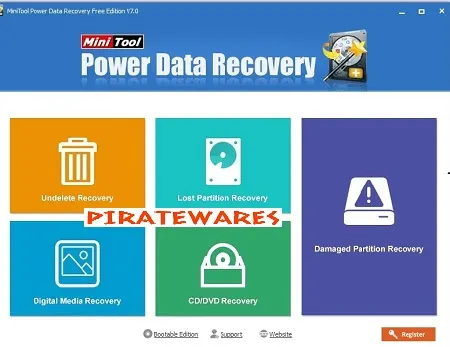
MiniTool Power Data Recovery includes several tools for locating and restoring lost files.
1. Deleted File Recovery
The application can scan storage devices for files deleted accidentally or removed from locations such as the Recycle Bin.
After scanning, users can browse the results and select the files they want to recover. However, files that have already been overwritten may not be recoverable.
2. Formatted Drive Recovery
Formatting a storage device can make existing files inaccessible. MiniTool Power Data Recovery provides scanning options for supported formatted drives and partitions.
The software may locate recoverable documents, images, videos, and other files, depending on the formatting method and subsequent drive activity.
3. Lost Partition Recovery
A partition may become inaccessible or disappear because of partition changes, file system problems, or accidental operations.
The software can scan supported storage devices and look for lost partitions and recoverable data. Users can also scan an entire physical device when the required partition is not visible.
4. Hard Drive and SSD Recovery
The application supports recovery scans for compatible internal and external HDDs and SSDs.
It can help locate files lost through accidental deletion, formatting, or certain partition problems. Nevertheless, physically damaged drives may require professional data recovery services instead of ordinary software scanning.
5. USB and Memory Card Recovery
MiniTool Power Data Recovery can scan supported USB flash drives, SD cards, and other removable storage devices.
This can be useful when photos, videos, documents, or other files disappear from a memory card or USB drive.
6. File Preview
The preview feature allows users to inspect supported files before recovering them.
This makes it easier to identify the correct document, image, or media file from a large collection of scan results. Preview availability depends on the file type and software version.
7. Search and Filter Options
Large scanning results can contain many files. Search and filtering tools help users narrow the results by file name, type, and other available properties.
These options can reduce the time needed to locate particular documents, photographs, or videos.
8. Recovery from Different File Systems
MiniTool’s recovery documentation lists support for file systems such as NTFS, FAT12, FAT16, FAT32, exFAT, and other supported formats.
Actual recovery availability depends on the device, file system condition, and installed product edition.
9. Bootable Recovery Options
MiniTool offers bootable recovery options through eligible editions. These options can help users work with a computer that cannot start normally.
Bootable media availability depends on the edition and license. It is not included as an unlimited free feature in every edition.
What’s New in MiniTool Power Data Recovery 12.8?
The official release notes list the following improvements:
- Real-time sector information during scanning.
- Clear alerts when a removable device becomes disconnected.
- Improved icons and interface consistency.
- Better typography and language switching.
The update mainly focused on scanning visibility and user experience rather than introducing a completely new recovery engine.
Is MiniTool Power Data Recovery 12.8 the Latest Version?
No. Version 12.8 was released in January 2026.
The developer subsequently released:
- Version 12.9 in April 2026.
- Version 13.0 in July 2026.
- Version 13.1 in September 2026.
- Version 13.2 in November 2026.
Version 13.2 is the latest release listed in the official version history as of November 2026.
If you are installing the software for a new recovery task, check the official download page for the latest compatible release.
MiniTool Power Data Recovery Free vs. Paid Editions
MiniTool provides free and paid editions. The available recovery capacity and advanced features depend on the selected license.
Free Edition
The Free Edition allows users to scan for lost files and recover up to 1 GB of data for free.
It is useful for small recovery tasks, testing whether the application can locate missing files, and restoring a limited amount of data.
Paid Editions
Paid editions provide additional recovery capacity and features. Depending on the license, these may include advanced recovery tools, business usage, or bootable recovery options.
Check the official edition comparison before purchasing because features and licensing conditions can change.
System Requirements and Compatibility
MiniTool Power Data Recovery is primarily a Windows data recovery application.
The official download information lists support for:
- Windows 11
- Windows 10
- Windows 8.1
- Windows 8
The developer also provides Windows Server editions for supported business recovery requirements.
Exact hardware requirements can vary by software version. For larger scans, a modern processor, sufficient memory, and adequate free storage space are recommended.
Important: Do not assume that every older Windows version, Mac computer, or server edition is supported by the same installer. Check the official download page for the edition that matches your system.
How to Download and Install MiniTool Power Data Recovery
Follow these steps to install the official application:
- Visit the official MiniTool Power Data Recovery download page.
- Select the Windows edition that matches your requirements.
- Download the installer from the developer’s website.
- Open the downloaded setup file.
- Follow the installation instructions.
- Launch the application after installation.
- Select the drive, partition, or storage device you want to scan.
- Start the scan and wait for the results.
- Preview and select the files you want to restore.
- Save recovered files to a different drive or storage device.
MiniTool provides a free edition, so you do not need an unofficial serial key or modified installer to test its basic recovery functionality.
Important Tips Before Recovering Lost Files
Data recovery requires care. A few incorrect actions can reduce the chances of restoring important information.
- Stop using the affected drive: New files can overwrite deleted data.
- Avoid installing software on the affected drive: Use another storage device when possible.
- Do not save recovered files to the original drive: Choose a separate drive or USB device.
- Avoid formatting the device again: Additional changes can make recovery harder.
- Preview files before restoring them: This helps identify the correct data.
- Keep backups: Recovery software cannot guarantee that every lost file can be restored.
If the drive makes unusual mechanical noises or shows signs of physical failure, stop using it and consider professional recovery assistance.
Related Data Recovery Software
Different recovery tools are designed for different storage devices and recovery situations.
- 7thShare Card Data Recovery: A tool focused on recovering files from memory cards and other supported storage media. Read our 7thShare Card Data Recovery guide for more information.
- iSkysoft Data Recovery: Another file recovery utility for supported storage devices. Explore our iSkysoft Data Recovery overview to learn about its general recovery purpose.
Compare their supported devices, operating system compatibility, recovery limits, and licensing before selecting a tool.
Frequently Asked Questions
Is MiniTool Power Data Recovery free?
Yes. MiniTool offers a Free Edition that allows users to recover up to 1 GB of data. Additional recovery capacity and advanced features require an eligible paid edition.
Is MiniTool Power Data Recovery 12.8 the latest version?
No. Version 12.8 was released on 6 January 2026. The developer has since released Version 13.2, listed on 3 November 2026.
Can MiniTool recover permanently deleted files?
It can scan for certain permanently deleted files, provided their data has not been overwritten. Recovery is not guaranteed.
Can MiniTool recover files from a formatted hard drive?
The application provides scanning options for supported formatted drives. The chances of recovery depend on the formatting method and whether new data has overwritten the original files.
Does MiniTool Power Data Recovery support USB drives and SD cards?
Yes. It supports recovery scans for compatible USB flash drives, SD cards, and other removable storage devices.
Can I preview files before recovery?
Yes. The application includes a preview feature for supported file types, helping users identify files before restoring them.
Can I save recovered files to the same drive?
You should not. Saving recovered files to the original drive may overwrite other lost data. Always choose a different storage device.
Does MiniTool Power Data Recovery work on Mac?
MiniTool provides a separate Mac data recovery product. The Windows Power Data Recovery installer should not be treated as a Mac application.
Does MiniTool Power Data Recovery require a serial key?
The Free Edition does not require an unofficial serial key. Paid editions use the developer’s official licensing process.
Final Verdict
MiniTool Power Data Recovery is a useful Windows utility for scanning storage devices and locating deleted or lost files. Its support for different storage media, partition scanning, file previews, and search filters makes it practical for many everyday recovery situations.
Version 12.8 introduced useful improvements to scanning progress and interface usability. However, it is no longer the newest release. Users should check the official version history before installing an older build.
Most importantly, stop writing new data to the affected device and save recovered files somewhere else. These precautions can help protect the remaining recoverable information.
Official Website: https://www.minitool.com/
Official Download Page: https://www.minitool.com/data-recovery-software/
Official Version History: https://www.minitool.com/data-recovery-software/upgrade-history.html


Recent Comments